
Inbox App on Your Phone
The Inbox app opens your workspace Inbox on a phone. Your team reads and replies to customer chats without the dashboard on a laptop.
App address: inbox.konektor.id.
What you need
- A Konektor account that is a member of the workspace.
- At least one WhatsApp number connected to the Inbox. Read Connect Official WhatsApp Business.
- A recent phone browser, for example Chrome on Android or Safari on iPhone.
Sign in
- Open inbox.konektor.id in the phone browser.
- Tap Sign in with Konektor.
- Sign in on the Konektor page. Then you come back to the app.
Set up the app
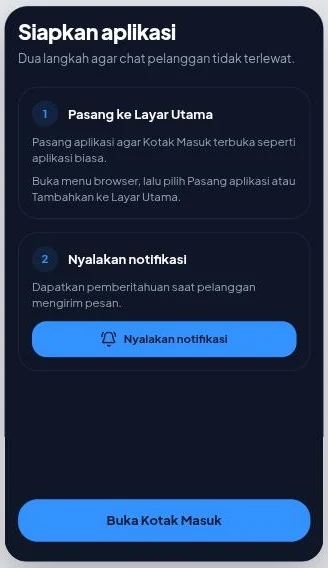
The Set up the app screen has two steps so you do not miss customer chats.
Add to Home Screen
- Android: tap Install app. If the button does not show, open the browser menu, then pick Install app or Add to Home Screen.
- iPhone: tap the Share button in Safari, pick Add to Home Screen, then open the Inbox from the icon on your Home Screen.
Turn on notifications
- Tap Turn on notifications.
- Allow notifications when the browser asks.
On iPhone, notifications only turn on from the app on your Home Screen. Install the app first, then turn on notifications from there.
Tap Open the Inbox when you finish. You can repeat these steps from the Account tab > Install the app and notifications.
Chats tab
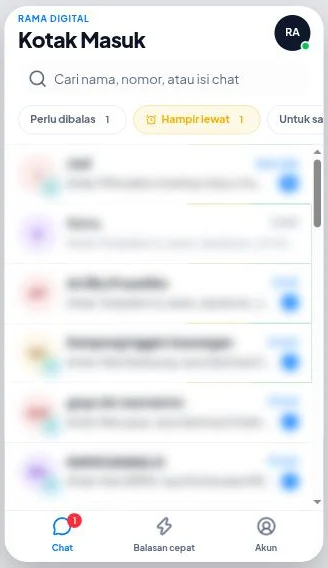
The Chats tab shows the conversation list with four views:
| View | What it shows |
|---|---|
| Needs reply | Chats that wait for a reply. |
| Almost due | Chats whose reply time is almost over. |
| For me | Chats assigned to you. |
| All | All chats. |
The search box searches names, numbers, and chat text.
Swipe a chat row for a quick action:
- Snooze snoozes the chat until tomorrow at 09:00.
- Resolve marks the chat as resolved.
Reply to a chat
- Tap a chat.
- Choose Reply or Internal note above the message box.
- Write the message, then tap Send. For a note, tap the save button.
Internal notes never reach the customer.
The message box also gives you:
- Attachments from Camera, Gallery, or Document.
- Template to open the 24-hour window again.
- Voice message recording.
- Type
/to use a quick reply.
When Wulan prepares a draft, the Wulan's suggestion card shows above the message box. Tap Send, Edit, or dismiss the suggestion.
Tap the contact info button to see the lead stage, the assignee, labels, and the chat source. From there you can also Take over the chat from Wulan or Hand back to Wulan.
Quick replies tab
The Quick replies tab shows the workspace quick replies. Tap a reply to copy it. Create and change quick replies from the dashboard.
Account tab
| Part | What it does |
|---|---|
| Workspace | Change the active workspace. |
| Your status | Choose Online to receive chats, or On a break so chats go to others. |
| Notifications | Choose notifications: New messages, Chats assigned to you, and Mentions in notes. |
| Open dashboard | Open the full Konektor dashboard. |
| Log out | Sign out of the app. |
Notifications cannot be turned on
Notification permission lives in two places. Check both.
1. Permission in Chrome (for inbox.konektor.id)
- Open the Chrome app on your phone.
- Tap ⋮ at the top right, then Settings.
- Tap Site settings, then Notifications.
- Make sure Notifications is on. If
inbox.konektor.idis under Blocked, tap it and choose Allow.
2. Permission in Android
- Open phone Settings, then Apps.
- Pick Chrome. If you added the Inbox to the Home Screen, pick the Inbox app too.
- Tap Notifications, then turn on Allow notifications.
Menu names can differ a little between phone brands. Then open the Inbox again and tap Turn on notifications.
iPhone: add the Inbox to the Home Screen from Safari first (Share › Add to Home Screen), open it from that icon, then tap Turn on notifications. If you denied it before, open Settings › Notifications › Inbox and turn on Allow Notifications.
Troubleshooting
| Text on screen | What to do |
|---|---|
| "The Inbox is off in this workspace" | Ask the workspace owner to turn on the Inbox, or choose another workspace in Account. |
| "No WhatsApp number is connected" | Connect a WhatsApp number from the dashboard, or ask the workspace owner to do it. |
| "Notification permission was refused. Change it in the browser settings." | Allow notifications for inbox.konektor.id in the browser settings, then try again. |
| "This browser does not support notifications." | Use another browser, for example a recent Chrome or Safari. |
| "The 24-hour window has ended. Send a template, or write an internal note." | Send an approved message template. |
| "Open this chat in the dashboard and accept the terms for this number to reply." | Open the same chat in the dashboard, accept the terms, then return to the app. |
| "Attachments cannot be sent from this number." | Send text only, or use an Official WhatsApp Business number. |
| "You are offline" | Connect to the internet, then send the message again. |
Related links
Need More Help?
Our team is ready to help you maximize ad tracking and business attribution.
Try or continue
© 2026 Konektor. All rights reserved.