
MCP
MCP is a standard way for AI to use tools from other systems. One MCP server can offer many tools, for example to open a ticket or to look up a customer.
Use MCP when your system or your service provider already has an MCP server. If you have only one simple API, use Tools (API).
What you need
- The owner or admin role in the workspace.
- A saved OpenRouter key. Read Agentic.
- A Replies model with the Supports tools label.
- The HTTPS address of the MCP server.
- If the server asks for a sign-in: a token or an access key from the server provider.
Add a server
- Open Wulan AI → Agent & model.
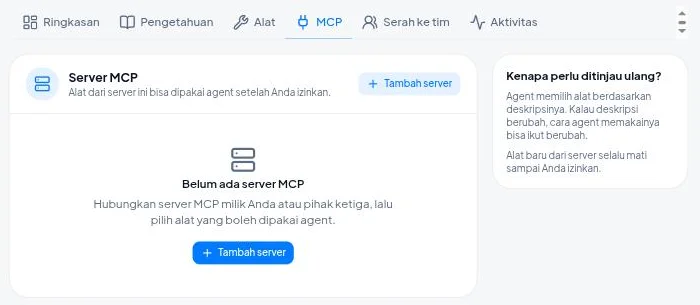
- Click the MCP tab.
- Click Add server.
- Fill in Server name. Use lowercase letters, digits, and underscores, for example
tickets. This name becomes the start of each tool name. - Fill in URL with the HTTPS address of the MCP server.
- Choose Authentication: None, Bearer token, or Header.
- Fill in Token, or Header name and Header value, if you chose authentication.
- Make sure Server on is on.
- Click Save.
Konektor stores the token encrypted and does not show it again. The page shows only the last 4 characters.
If you change the URL, Konektor treats it as a new server. Sync and allow its tools again.
Sync and allow tools
A new tool from a server is always off. The agent uses it only after you allow it.
- Click Sync tools on the card of the server. Wait for the message "Tool list updated."
- Open the list Tools from {server name}.
- Turn on Allow for each tool that the agent may use.
- Select Needs approval for a tool that changes data or has a big effect.
A tool that you mark Needs approval waits for your team to press Approve in the Inbox before it runs. Read Hand over to team and Approvals.
You decide which tools need approval. A mark from the server does not change your decision.
Start by allowing a few tools. Allow more tools after you are sure the results are correct.
When a tool changes
The agent chooses a tool from its description. If the server provider changes the description, the way the agent uses the tool can change too. For this reason you review the change first.
When a tool has changed since you approved it:
- The server shows the status Needs review.
- A banner shows "{number} tools changed since approval".
- The agent stops using that tool.
To use the tool again:
- Click Review on the banner.
- Find the tool with the Changed mark.
- Read the new description.
- Click Approve the new version.
Result
- The card of the server shows the status Connected, the kind of authentication, and the count "{allowed} of {total} tools allowed".
- The agent uses the tools that you allow when a customer needs them.
- Each use of a tool is recorded in the Activity tab.
Common problems
| Message | Cause and fix |
|---|---|
| The server did not answer. | Check the address and make sure the server is running. |
| The server refused the access key. | The token or the header value is wrong. Enter the correct value, then save. |
| The server took too long to answer. | The server did not answer in 10 seconds. Try again later or contact the server provider. |
| This address cannot be used. Use a public HTTPS address. | Use a public https:// address with a domain name. |
| The server answer is too large. | Contact the server provider. |
| This server name is already used. | Choose another name. |
| This header name cannot be used. | Choose another header name. |
| Enter the token or header value for this kind of authentication. | Fill in the authentication value. |
| No tools yet. Press Sync tools. | Click Sync tools. |
| The limit of 3 servers is reached. | Delete a server that you do not use. |
The agent does not use your MCP tool? Check these four items:
- Server on is on.
- Allow is on for that tool.
- The server does not have the status Needs review.
- The Replies model has the Supports tools label.
Delete a server
- Click Edit server on the card of the server.
- Click Delete server.
- Click Yes, delete.
All tools from that server are deleted too. The agent can no longer use them. To stop a server for a while, turn off Server on.
Limits
| Limit | Value |
|---|---|
| MCP servers in a workspace | 3 |
| Tools in a server | 50 |
| Wait time for the answer of a server | 10 seconds |
| Size of the answer of a server | 256 KB |
| Tool calls each hour for the whole workspace | 300 |
| Agent steps for each reply | 4 |
See also
Need More Help?
Our team is ready to help you maximize ad tracking and business attribution.
Try or continue
© 2026 Konektor. All rights reserved.