

How to install the Konektor tracking code on your website in 1 minute (Indonesian narration)
How to install the Konektor tracking code on your website in 1 minute (Indonesian narration) • 0:56
Tonton di YouTubeInstall and Verify the Tracking Script
The tracking script connects website visits to events in Konektor. Follow this order: copy the workspace code, install it on every page, open the website, and confirm that Konektor receives a real event. Ad-platform delivery is a separate, optional step.
Before you start
You need:
- owner or admin access to the Konektor workspace;
- permission to change the website header or Google Tag Manager container;
- a website page that you can open for testing;
- ad-platform credentials if you also want to send events to Meta, Google, or TikTok.
Do not expose credentials
Never put an access token, API secret, or password in the website script. Enter platform credentials only in the Add ad platform form in the Konektor dashboard.
1. Copy code from the correct workspace
- Enter the workspace that you want to track.
- Open Website Tracking.
- Find the Tracking code card.
- If an ID is not available, click Create tracking code.
- Click View code. On the Install yourself tab, click Copy Code.
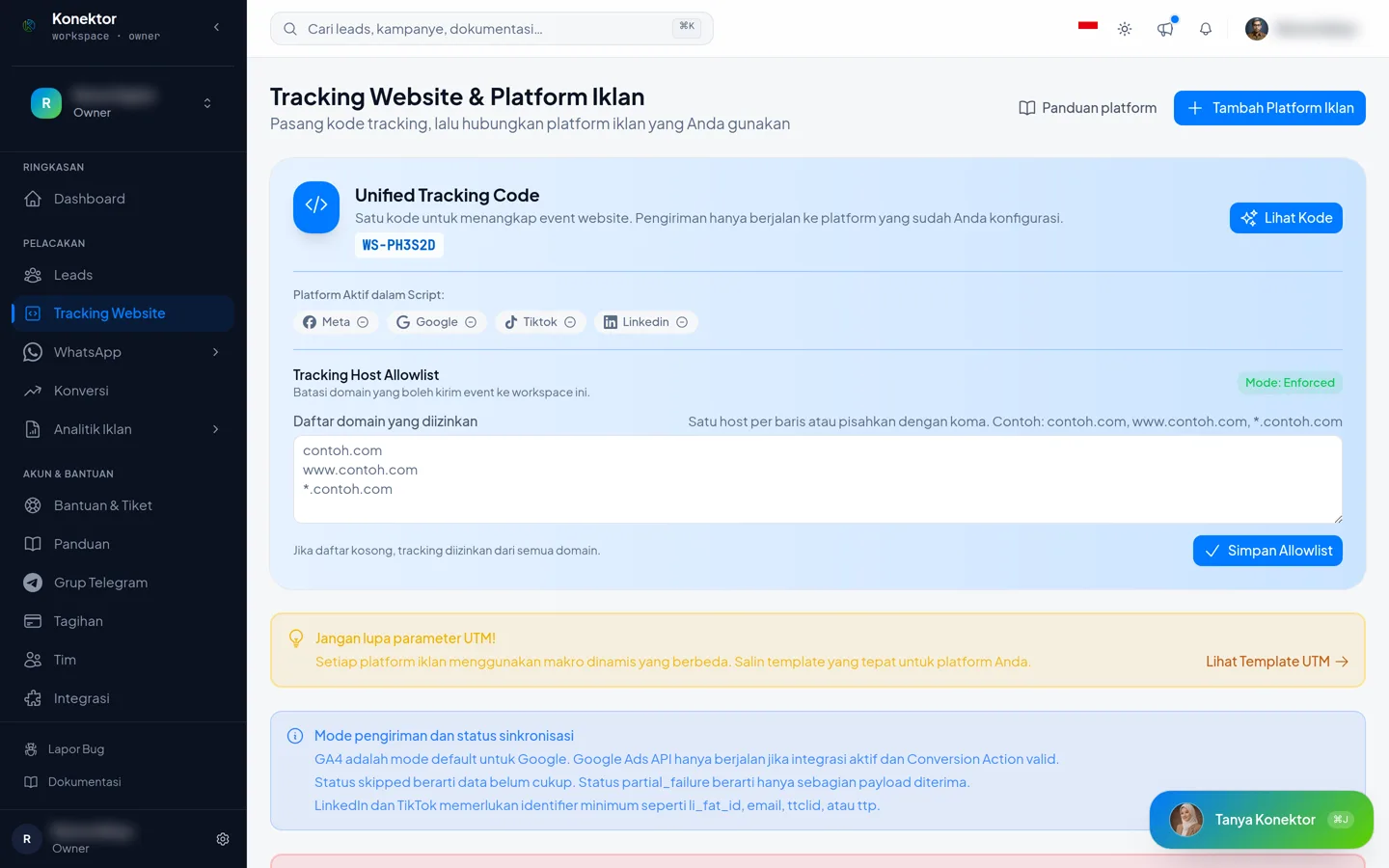
Always use the complete code generated by the dashboard. Do not copy a sample ID from documentation or replace the workspace ID manually.
2. Choose one installation method
The script must load on every page that you want to track. Install it once through a method that applies site-wide.
HTML manual
- Open the website's main layout template.
- Paste the complete code before the closing
</head>tag. - Save, build, and publish the website.
If the website navigates without loading a new page, make sure the app also records PageView after each route change. Ask a developer to check this when the URL changes without a full page reload.
Google Tag Manager
- Open the website container in Google Tag Manager.
- Select Tags > New.
- Select Tag Configuration > Custom HTML.
- Paste the complete Konektor code.
- Under Triggering, select Initialization - All Pages.
- Save, use Preview to test, then Submit to publish the container.
Make sure the Google Tag Manager container itself is installed on the website. A tag that is only saved and not published does not run for visitors.
WordPress
Konektor has no WordPress plugin of its own. Use a trusted feature or plugin that inserts code into the site-wide header.
- Open the header-code settings in WordPress.
- Paste the complete Konektor code into Header.
- Save the change.
- Clear the WordPress, caching-plugin, and CDN caches if used.
On WordPress.com, the ability to install JavaScript depends on the site's plan. See the WordPress header-code guide if you cannot find a code installation option.
Shopify
Back up or duplicate the theme before editing code.
- Open Online Store > Themes.
- Open the action menu for the active theme, then select Edit code.
- Open the main layout file, usually
theme.liquid. - Paste the complete Konektor code before
</head>. - Click Save, then open the published storefront.
See the Shopify theme-code guide if your theme has a different structure.
Landing-page builder
Look for a setting named Custom Code, Tracking Script, Header Script, or something similar. Paste the code into the global header area, not into a single page element.
If the platform has separate public and checkout pages, check whether the code must be installed in both areas. Use the platform's official help because menu names can differ.
Custom backend app (PHP, Laravel, Node.js, and similar)
The Konektor tracking code is a plain HTML <script> tag. It does not depend on the backend language, so the same steps apply to a website rendered by PHP, Laravel, Node.js, or another framework.
- Open the shared layout template every page uses, for example
header.phpor a Blade layout file. - Paste the whole code before the closing
</head>. - Confirm that template is used by every route or page you want to track, including pages rendered from a different controller.
Follow the same verification steps in 3. Send and verify a website event below.
3. Send and verify a website event
Run this test on the published website, not only inside its editor.
- Open the website in a private or incognito window.
- Open a page that contains the Konektor code.
- Return to the Konektor member dashboard.
- In the Activate one thing first panel, click Check again.
- Confirm that the website step says an event, such as
PageView, was received.
The website step in the panel becomes done after the first event arrives. If the status does not change, wait a moment, then click Check again.
A real event is the required evidence
A loaded tracker.min.js file only proves that the browser found the script. Konektor marks website tracking as verified after receiving a real event. Test send does not replace this website test.
4. Optional: add an ad platform
Skip this section if you only need to confirm that website tracking works. Add an ad platform after the website step in the panel is done.
- Open Website Tracking. If the code does not exist yet, click Create tracking code.
- Click Add ad platform. The Ad platform choices include Meta, Google, and TikTok.
- Select a platform.
- Enter the values from that platform account.
- Click Save.
Use these guides for credentials and event mapping:
By default, the Konektor script does not automatically load an ad platform's browser tag. If you already manage Meta Pixel, Google tag, or TikTok Pixel through Google Tag Manager or website code, keep the browser tag there to avoid duplicate installation.
5. Optional: test platform delivery
- In the Connected ad platforms table, open the platform row menu, then select Test send.
- Enter the Event Name and any required test data.
- For Meta, enter the Test event code (Test Event Code) from Meta Events Manager > Test events. This code is required for Meta.
- Click Send test.
- Check the result in Konektor and the platform's test tool.
| Result | Meaning |
|---|---|
| Test passed | The platform received the test event. |
| Failed | Check the credentials, ID, account permissions, and error message. |
The Test passed status differs from Healthy. Healthy appears after the platform receives real events. A saved configuration does not prove that delivery works. The test result does not change the required website-tracking evidence.
Move or remove a pixel from an old workspace
One pixel ID can be in only one workspace. If the ID is still in an old workspace, Konektor offers a way to move it to the new workspace.
- Open the new workspace, then open Website Tracking.
- Click Add ad platform, then enter the same platform and pixel ID as the old workspace.
- Click Save.
- If your account is an owner or admin in the old workspace, Konektor shows the message This pixel is in the workspace {old workspace name}. Click Move to this workspace. This still works even when the old workspace has no active plan.
- If your account is not an owner or admin in the old workspace, Konektor shows a message that another workspace already uses this pixel. Ask the owner or admin of the old workspace to do the step above, or ask them to invite your account as an admin in this new workspace.
- After the pixel moves, replace your website tracking code with the code from this new workspace.
Notes:
- Only a workspace owner or admin can move or delete a pixel.
- Moving a pixel does not delete the leads in the old workspace.
- You can also delete the pixel directly in the old workspace. Open the row menu in the Connected ad platforms table, then select Delete. Do this if you do not want to move it.
Optional settings
Allowed domains
Use the domain list when only specific domains should be allowed to send events.
- On the Website Tracking page, open the Allowed domains section.
- Enter one host per line, such as
example.comandwww.example.com. - Click Save domains.
- Test the website again.
When the list is empty, all hosts are allowed. When it contains entries, a website domain that is not listed is rejected.
Custom domain
After adding or changing a custom domain in Konektor, open Tracking code again and copy the latest code. This is safer than editing domain options inside the script manually.
Troubleshooting
| Symptom | What to check |
|---|---|
| The activation panel does not say an event was received | Open a published website page, wait briefly, then click Check again. |
| The panel is complete but the header has not changed | Click Check again once. The panel and header fetch the latest evidence together. |
tracker.min.js does not appear in the browser Network tab | Confirm that the code is in the global header, the change is published, and caches are cleared. |
| The script request is blocked | Test without a blocking extension, check Content Security Policy, and confirm that the website does not block the CDN domain. |
| A domain-not-allowed message appears | Add the exact website host to Allowed domains, or clear the list if you do not need the restriction yet. |
| Events appear twice | Look for duplicate Konektor installation in the theme, plugins, and Google Tag Manager. Also check for platform browser tags installed through more than one method. |
| No website event arrives even though the script loads | Check browser errors, the domain allowlist, and whether PageView runs after init. |
| The platform does not receive the test event | Fix the configuration under Website Tracking, then run Test send again. |
A test event is skipped | Add the identifier and required data described in the result message. |
| A change is not visible | Publish the container or website, then clear browser, website, and CDN caches. |
| The pixel ID is refused because it is in use | Read Move or remove a pixel from an old workspace, then move that pixel to this workspace. |
If the problem continues, record the test-page URL, test time, and error message. Hide access tokens, API secrets, customer identities, and personal data before sharing screenshots.
Next steps
Need More Help?
Our team is ready to help you maximize ad tracking and business attribution.
Wulan answers your questions and sends tutorial videos. Session scheduling is available through Wulan if you still need it.
© 2026 Konektor. All rights reserved.