

How to connect official WhatsApp through Kapso in 1 minute (Indonesian narration)
How to connect official WhatsApp through Kapso in 1 minute (Indonesian narration) • 0:57
Tonton di YouTubeKapso WhatsApp Integration
Connect your official WhatsApp number on Kapso to Konektor. Once connected, every conversation appears in your Kotak Masuk (Inbox). A message that carries a visitor code [K-...] or Click-to-WhatsApp ad data becomes a Lead. You can send outbound messages (text & template) directly from Konektor.
About Kapso
Kapso is an official WhatsApp connection provider (Cloud API). You sign up and pay Kapso directly, not through Konektor. Konektor only needs one API key from your Kapso account.
The number of WhatsApp numbers you can connect follows your Kapso plan, not your Konektor plan:
| Kapso plan | Number limit |
|---|---|
| Free | 1 number |
| Pro | 3 numbers |
| Platform | 50 numbers |
Prerequisites
Before you start, prepare:
- An active Kapso account.
- One WhatsApp number to connect (a new number, or a number that already has WhatsApp Business).
- Access to Konektor as the Owner or Admin of your workspace.
Connect a Number on Kapso
- Sign in to the Kapso dashboard.
- Click Phone numbers, then Set up number. On the Home page, the same step is the Add phone number shortcut.
- Choose one of the three ways below.
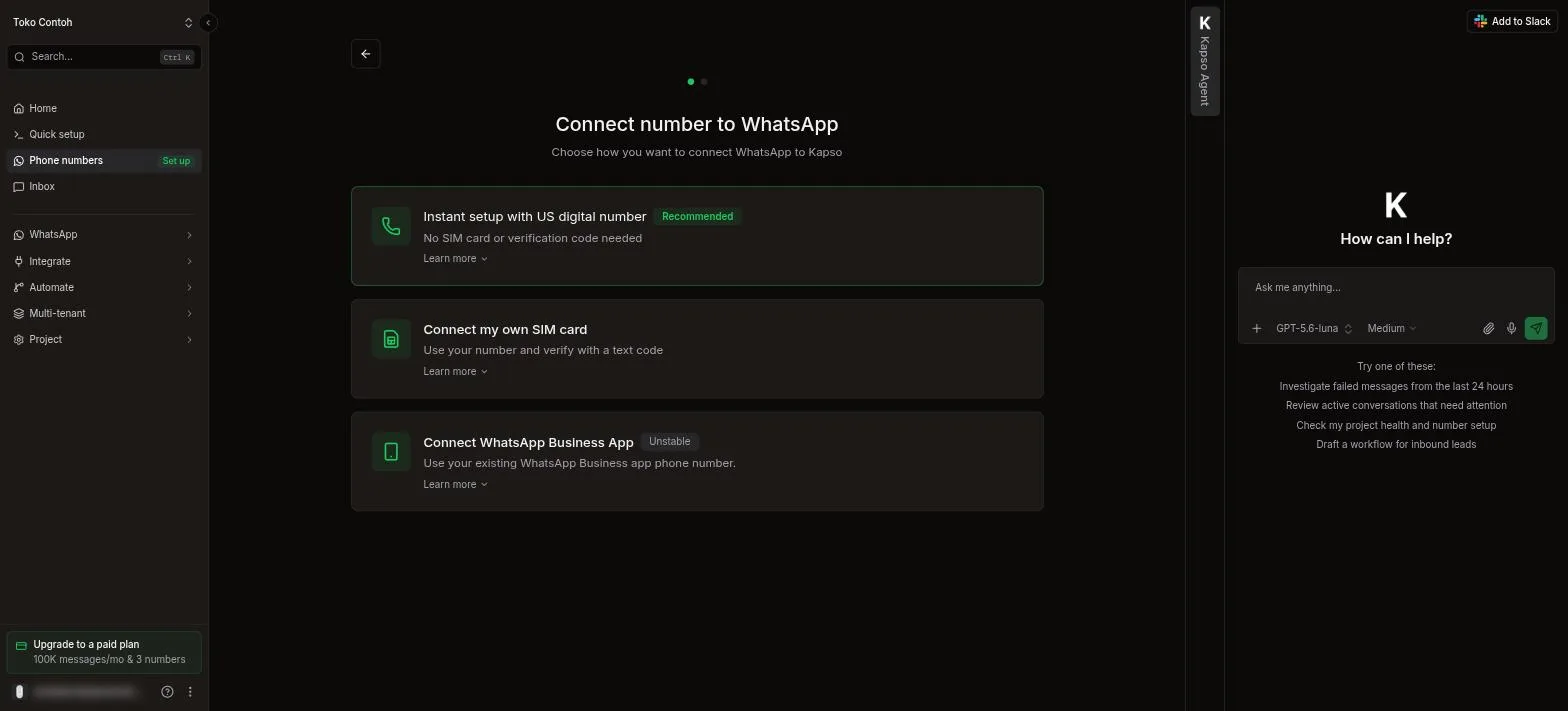
Way 1: US digital number (fastest)
Kapso gives you a US number that is already verified. You need no SIM card and no verification code.
- Choose Instant setup with US digital number.
-
Tick the confirmation box, then click Get and set up phone number.
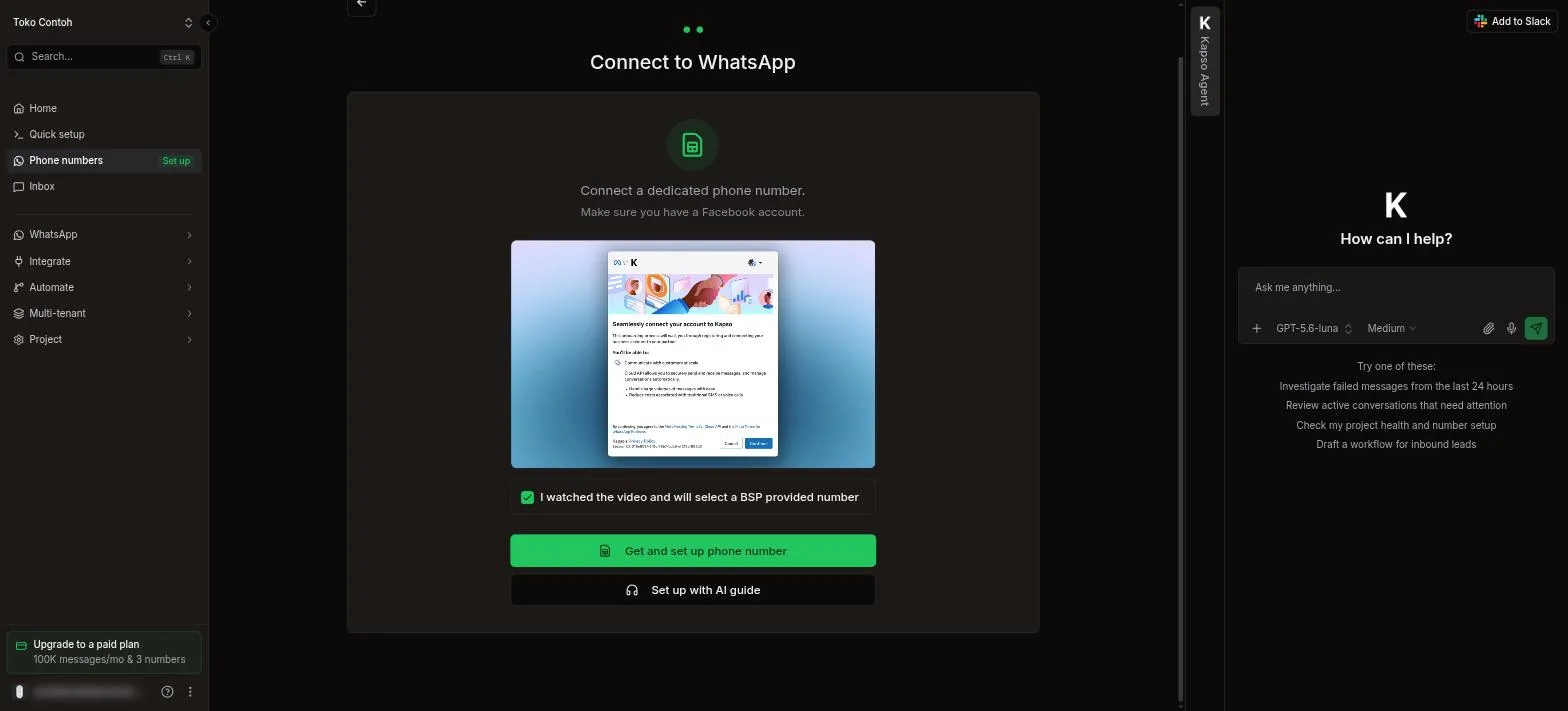
-
A Facebook window opens. Click Continue.
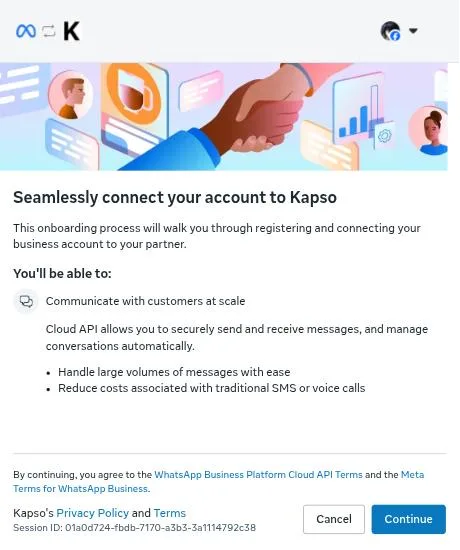
-
Under Phone number, pick a number labeled Verified, then click Next.
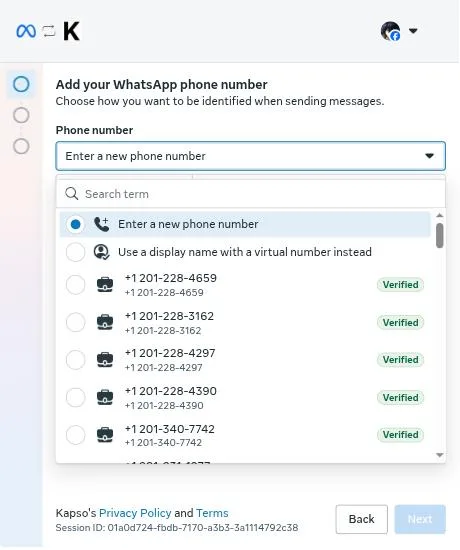
-
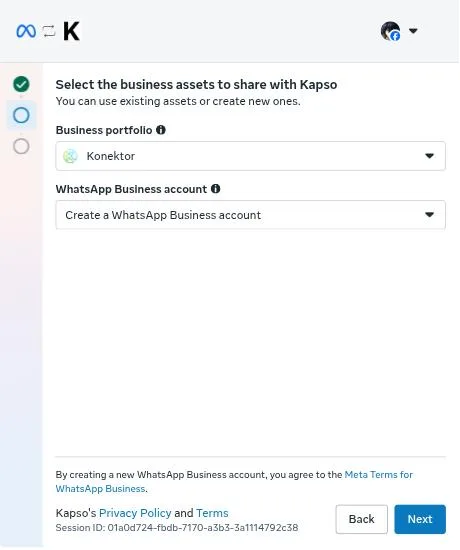
Choose your Business portfolio. Under WhatsApp Business account, choose Create a WhatsApp Business account, then click Next.
-
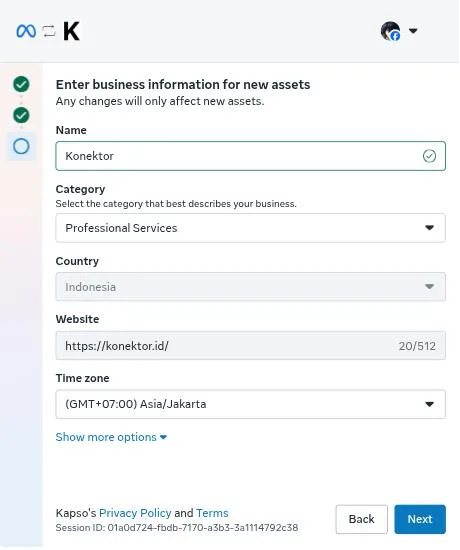
Enter your business name in Name, choose a Category, then click Next.
-
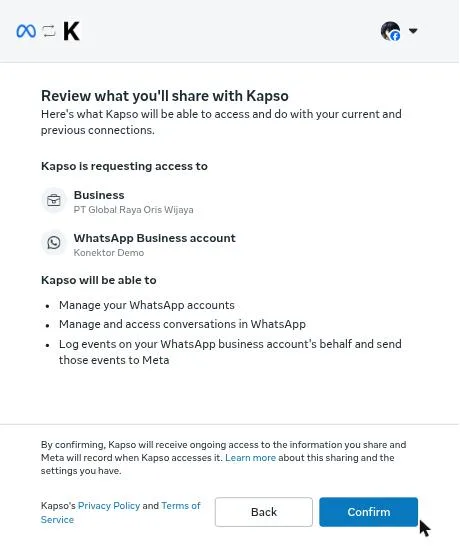
Review the requested access, then click Confirm.
-
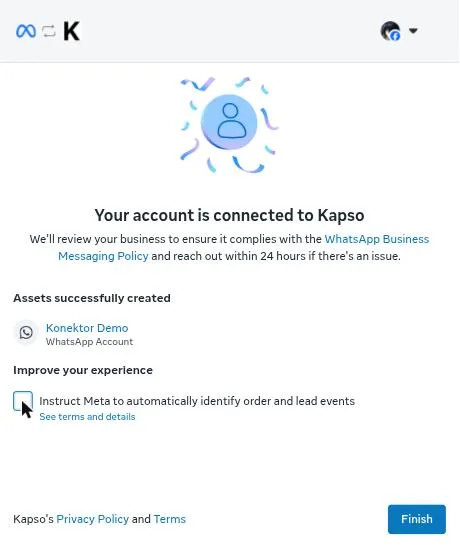
The Meta window shows Your account is connected to Kapso. Clear the box Instruct Meta to automatically identify order and lead events, because Konektor already sends its own conversion events. Then click Finish.
-
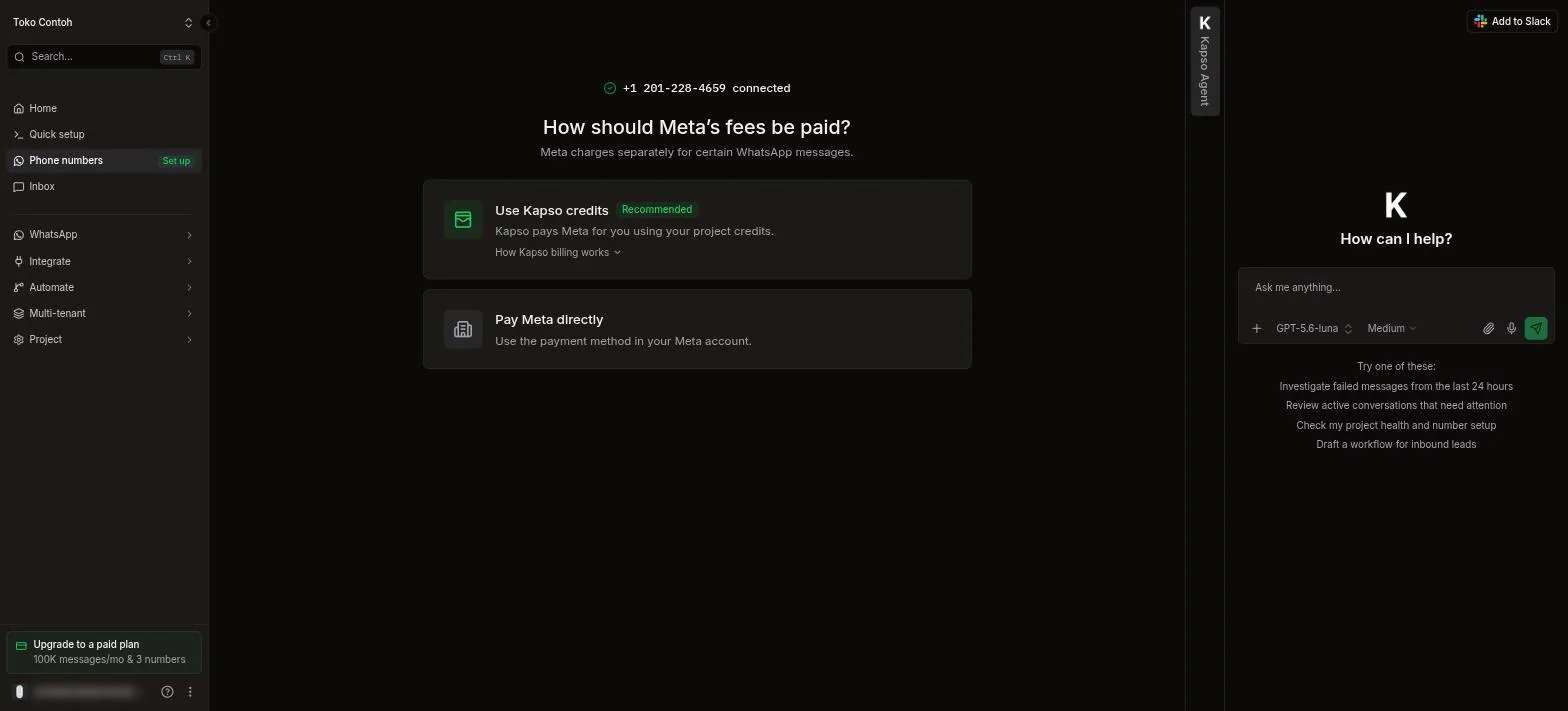
Back on Kapso, choose how to pay Meta's fees. Use Kapso credits is the simplest.
-
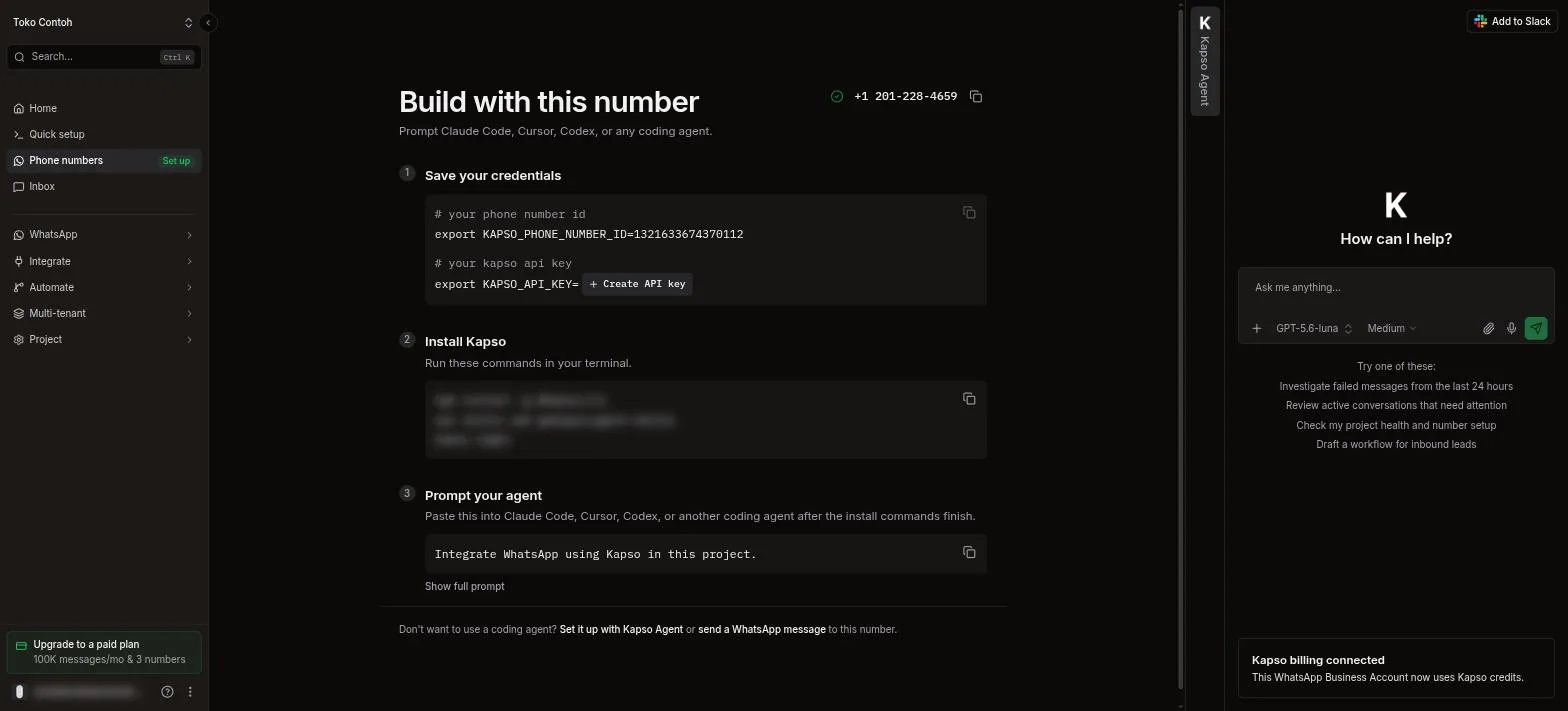
Kapso shows the Build with this number page. Your number is live.
From 1 October 2026, Meta charges replies within 24 hours after 1,000 free messages per number per month. Read Message costs from Meta for the rates. The Kapso Free plan gives one US digital number; a second number needs the Pro plan.
Way 2: Your own SIM card
Use your own number that is not registered in any WhatsApp app.
- Choose Connect my own SIM card.
- Follow the Facebook window as in Way 1, but choose Enter a new phone number.
- Enter your number, then enter the code sent by SMS or call.
If the number is still installed in a WhatsApp app, delete that WhatsApp account from the phone first.
Way 3: An existing WhatsApp Business number (coexistence)
Use a number that is already live in the WhatsApp Business app. The phone app keeps working, and your chat history syncs.
- Choose Connect WhatsApp Business App.
- Follow the Facebook window, then scan the QR code from the WhatsApp Business app on your phone.
This mode is capped at about 5 messages per second, and the connection sometimes drops on its own. Kapso labels it Unstable. Choose Way 1 or Way 2 for high volume.
If you see "WhatsApp Business account is currently restricted"
Meta restricts the business portfolio you chose. Click Back, then choose another business portfolio. Check that portfolio in Business Support Home.
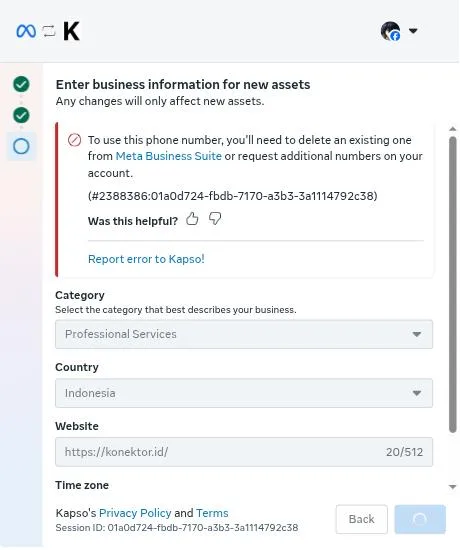
If you see "To use this phone number, you'll need to delete an existing one"
Your business portfolio has reached its number limit. A portfolio that is not verified can hold only a few numbers. Choose another business portfolio that is verified, or delete an old number in WhatsApp Manager.
Create an API Key on Kapso
- In the Kapso dashboard, open Integrate > API keys.
-
Click Create API key, give it a name (for example
Konektor), then click Create key.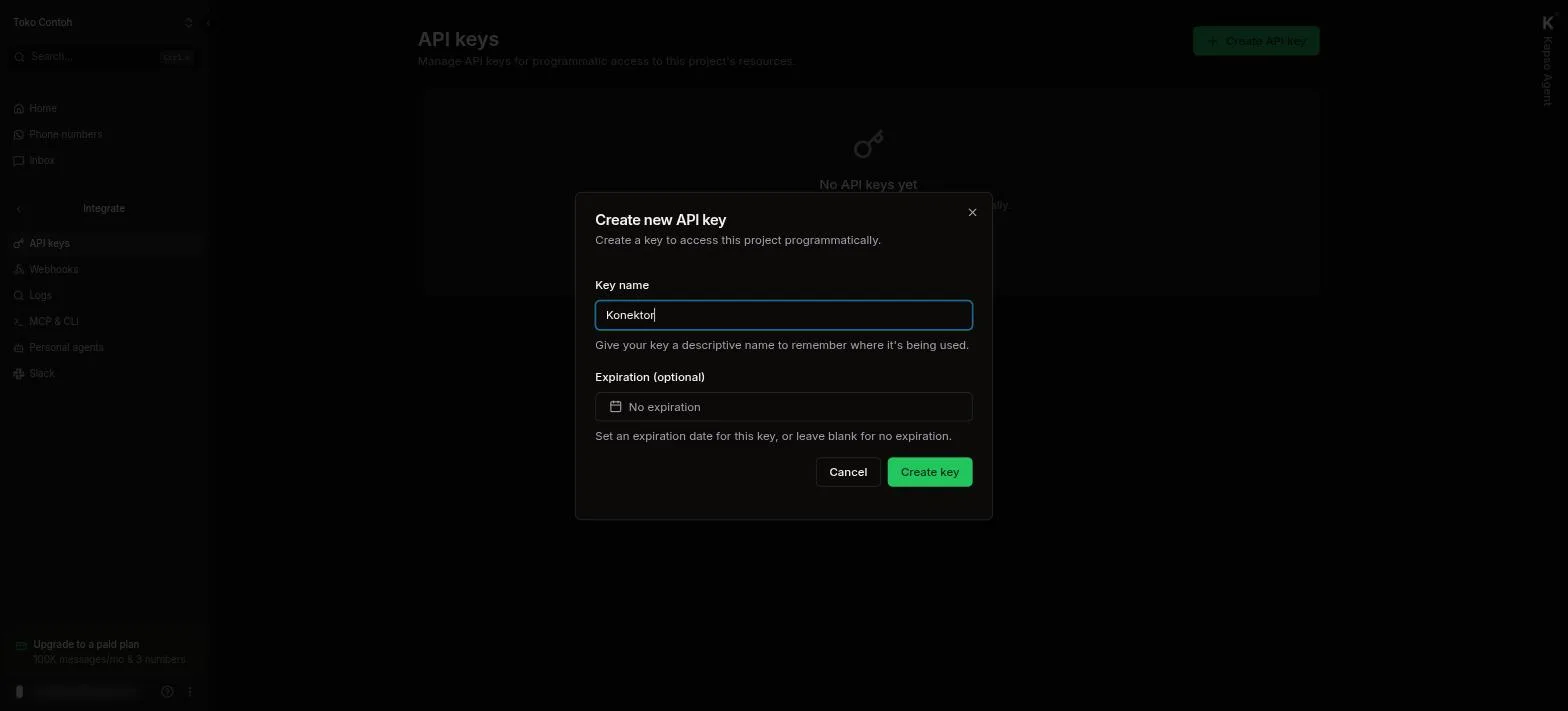
-
Click the copy icon next to the key. Kapso shows it only once.
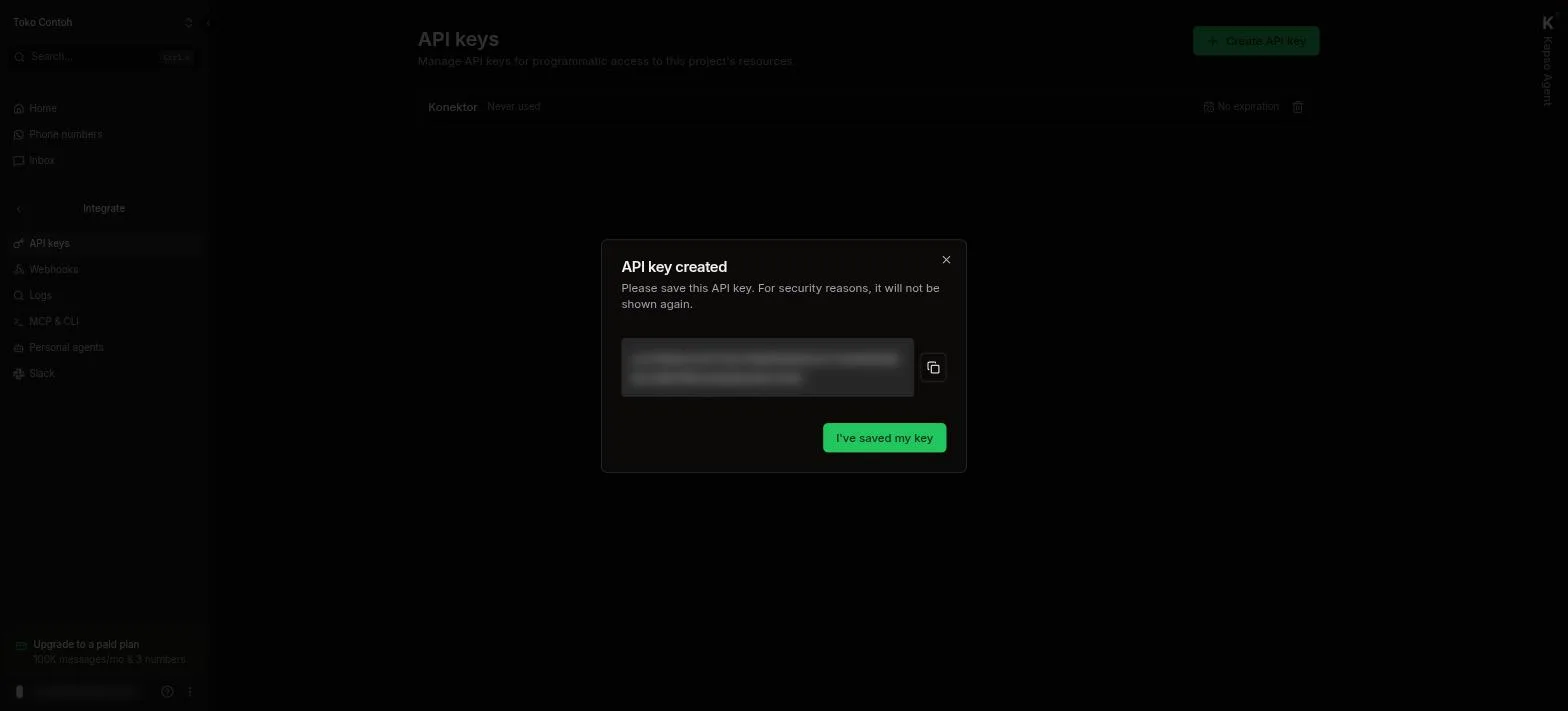
- Keep this key safe. It works for every number in your Kapso account, so never share it with anyone you do not trust.
Add the API Key to Konektor
- Sign in to Konektor as the Owner or Admin of your workspace.
- Open Pengaturan (Settings) > Lainnya (More) > Integrasi (Integrations), then click the Kapso card under Tersedia untuk dihubungkan (Available to connect).
- The Hubungkan partner (Connect partner) form opens with Kapso already selected.
-
Paste your Kapso API key into API Key.
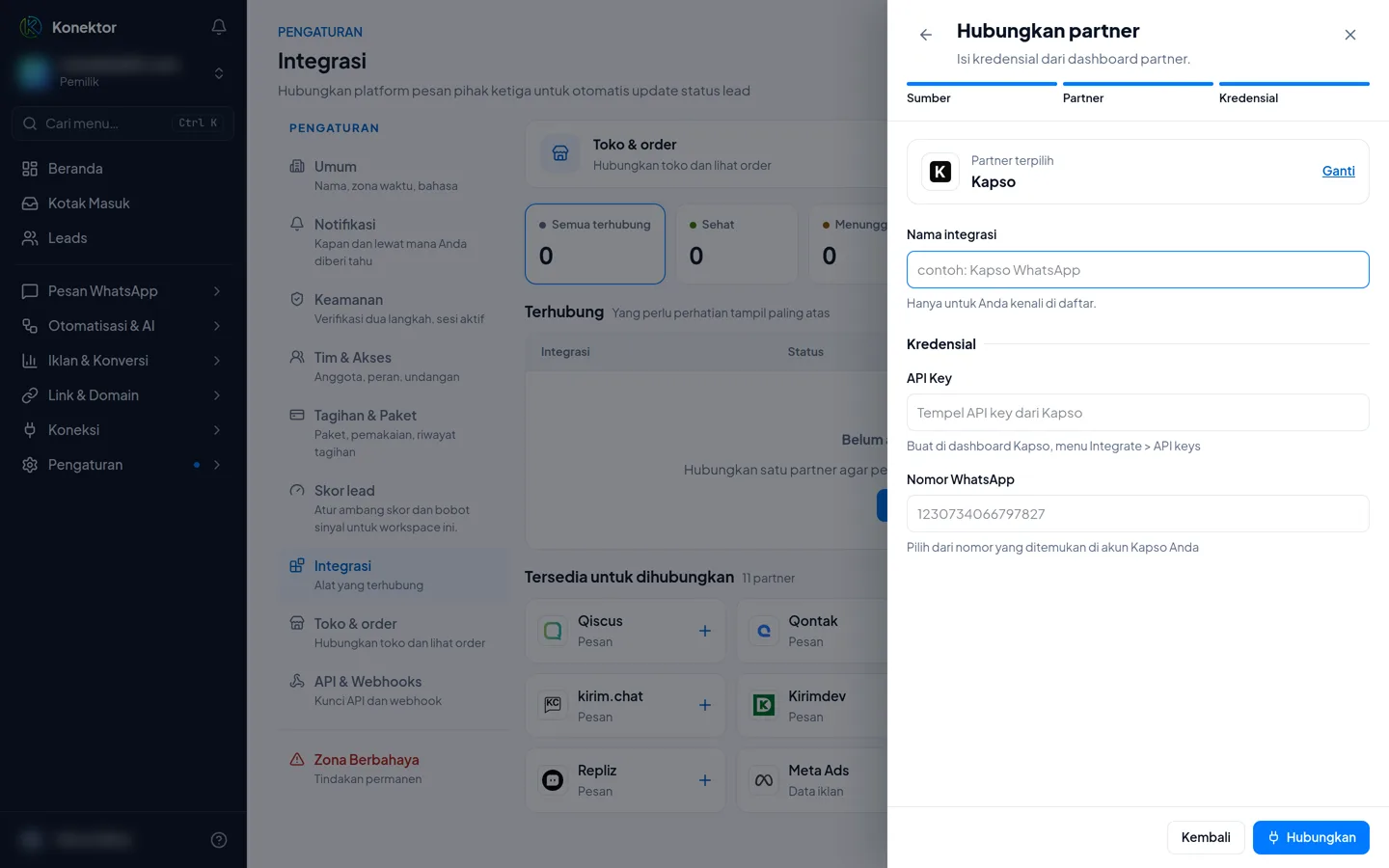
- Konektor looks up the numbers in your Kapso account at once. When there is only one, Konektor picks it and fills in Nama Integrasi (Integration Name) for you.
-
Click Hubungkan (Connect). The new integration card shows Terhubung (Connected).
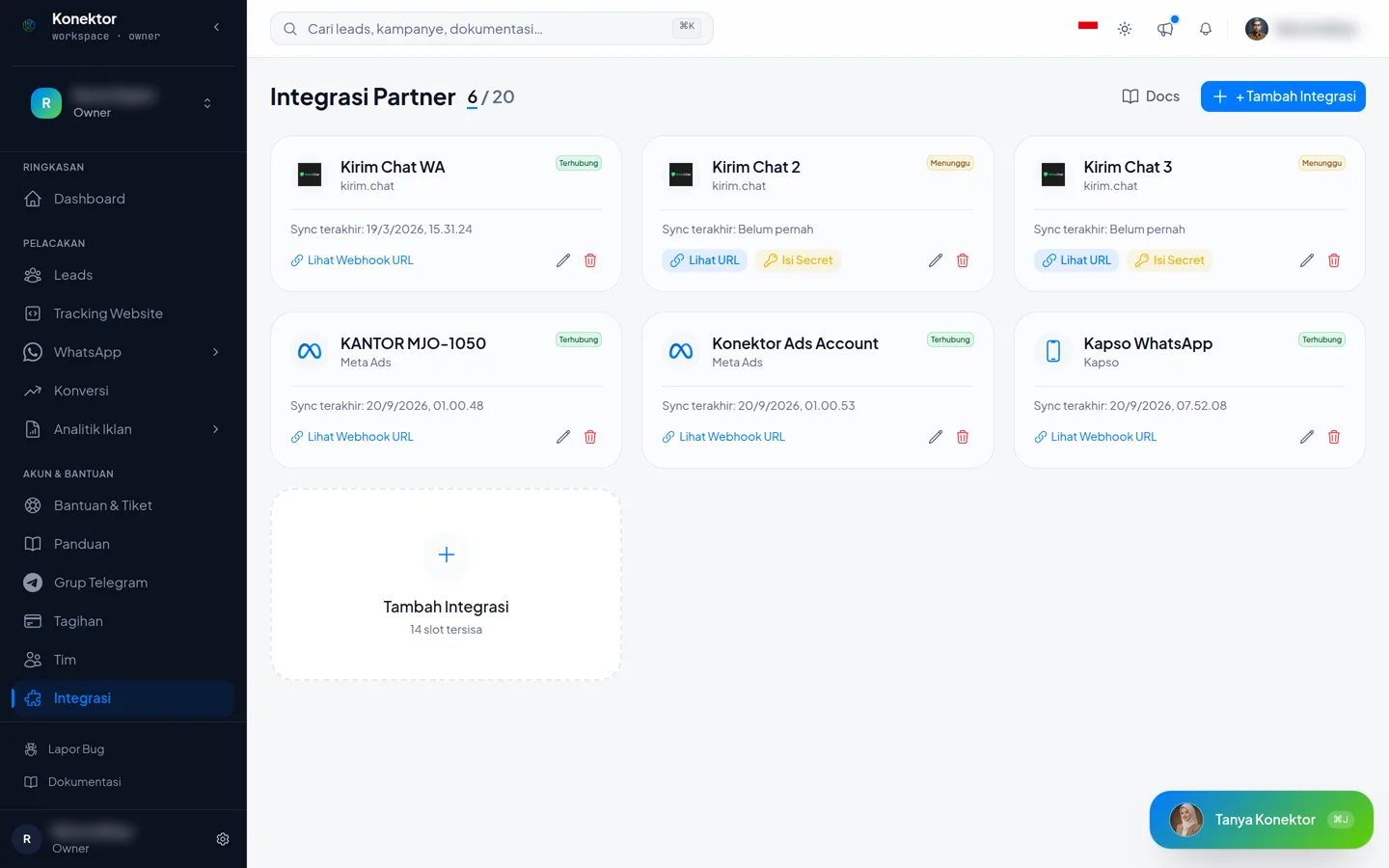
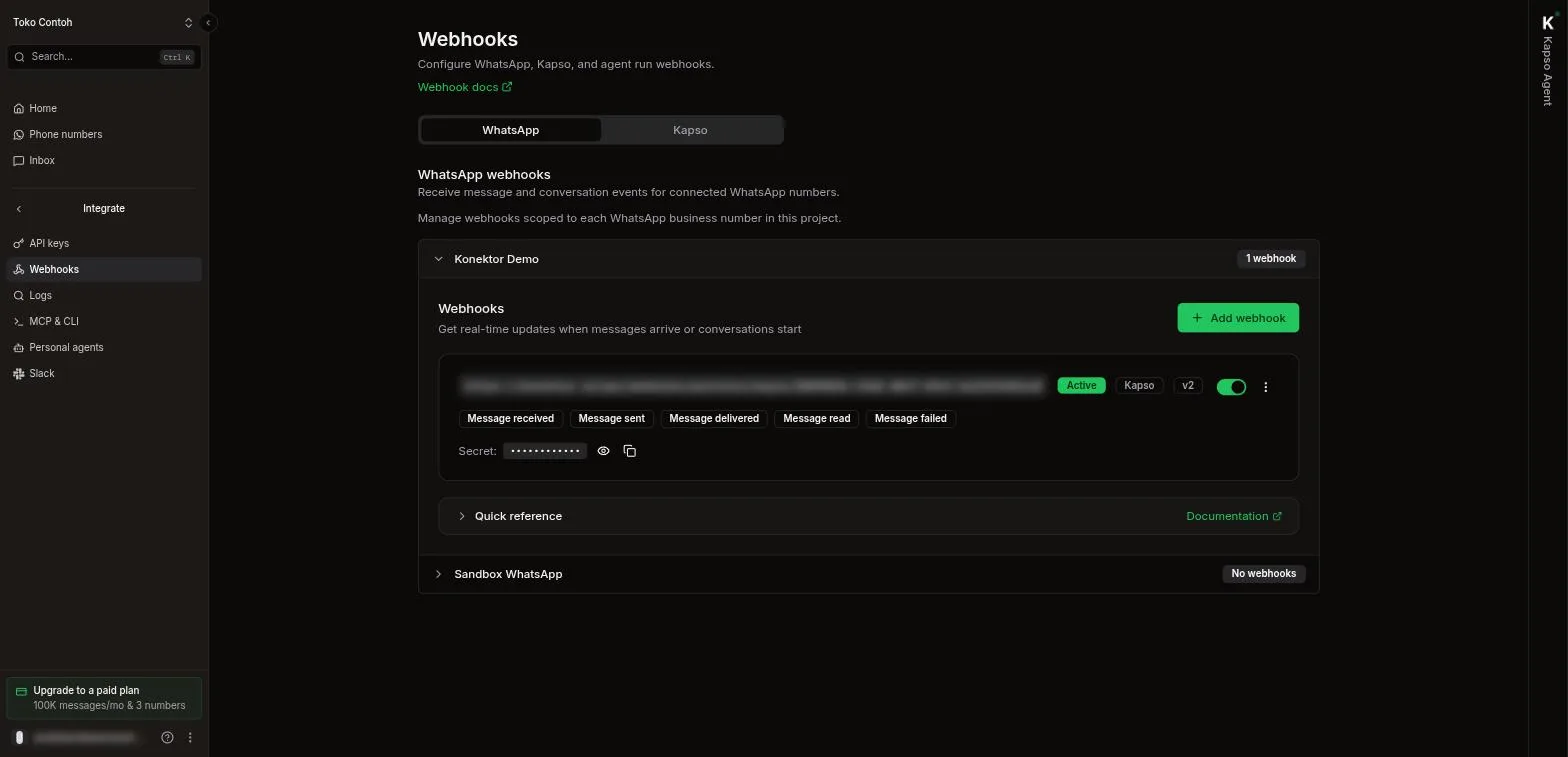
You do not need to create a webhook on Kapso. Konektor registers the webhook for that number automatically, with its signing key. On Kapso, open Integrate > Webhooks to see it marked Active.
Choose a Number
- Choose a number that is not already connected to another Kapso integration.
- A number already used by another active Kapso integration in this workspace is shown, but cannot be selected.
- If the number list does not appear, enter the Nomor WhatsApp (WhatsApp Number) manually using the number ID from Kapso.
- Click Hubungkan to finish.
Messages Reach Your Inbox Automatically
Once the integration is active, WhatsApp messages sent to that number appear automatically in your Inbox, alongside your other WhatsApp channels. No extra step is needed.
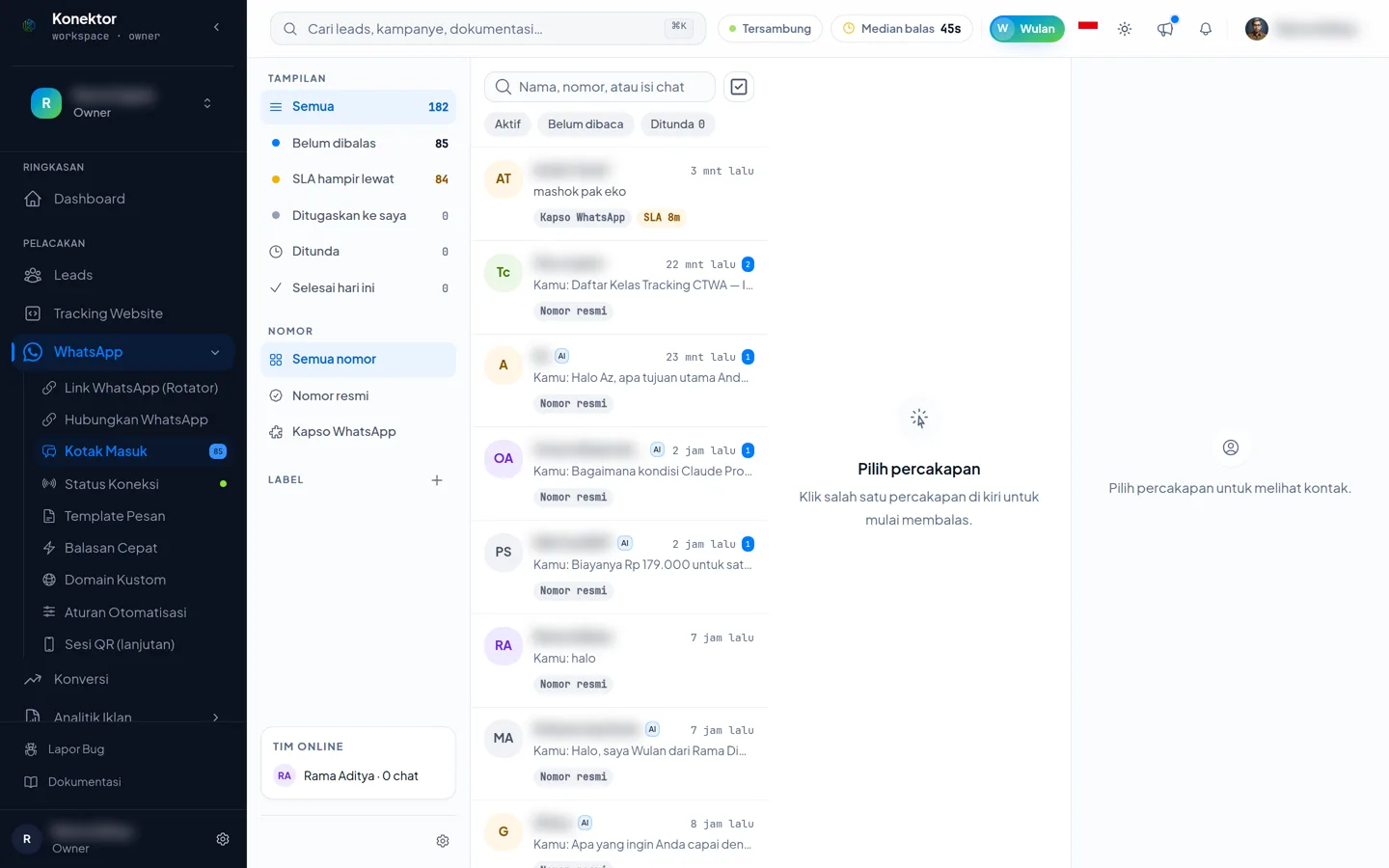
When you open a conversation, the customer sees blue ticks. When you type a reply, the customer sees that you are typing.
Test Sending and Receiving
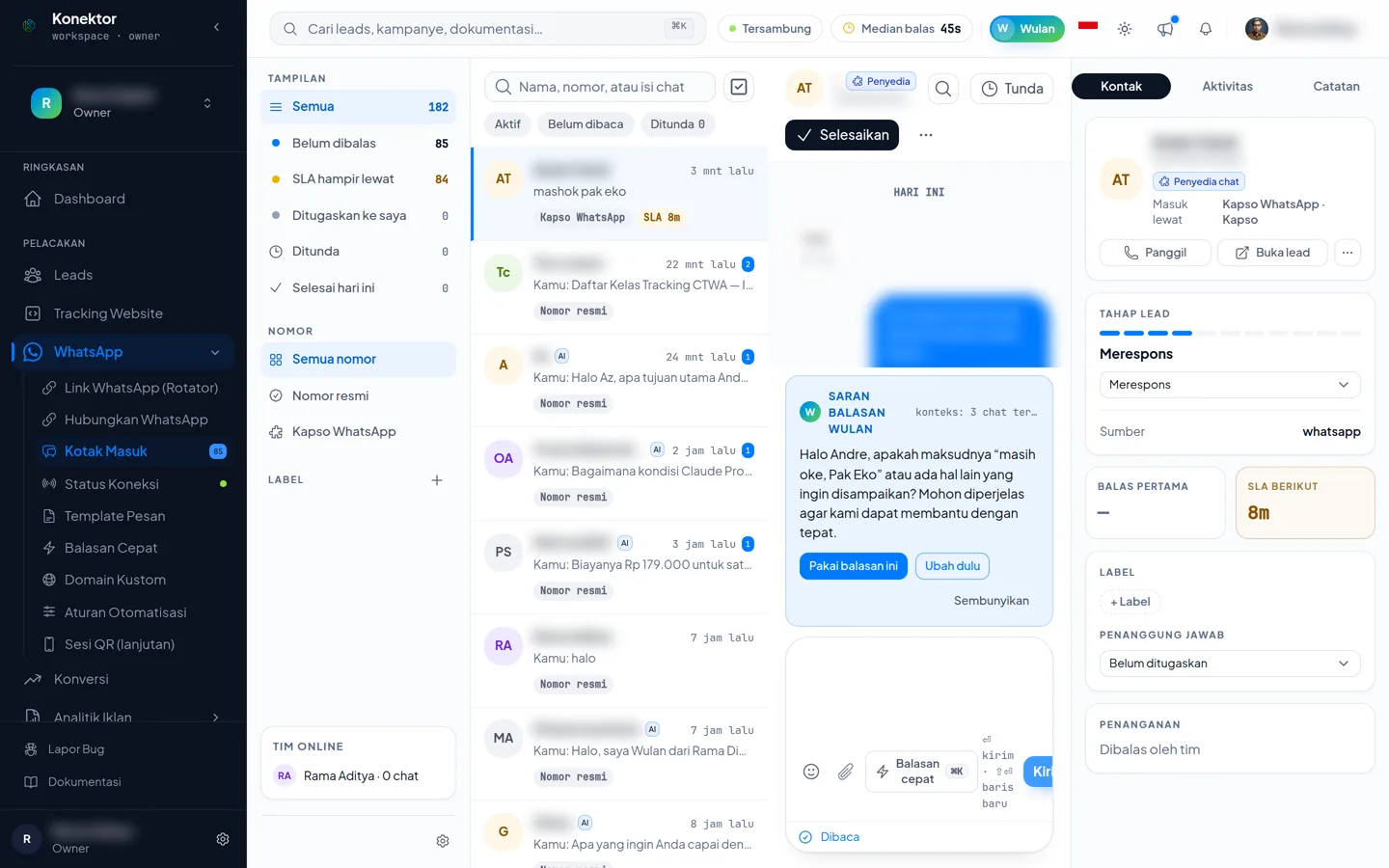
- Send a WhatsApp message from a personal number to the newly connected Kapso number.
- Open your Kotak Masuk and confirm the message appears as a new conversation.
- Reply to that message from the Inbox.
-
Confirm your reply arrives on WhatsApp, and its status moves from sent to delivered, then read.
Add a Second Number
- Create another Kapso integration in Konektor using the same API key (see Add the API Key to Konektor above).
- Choose a different number that is not yet connected.
The number limit follows your Kapso plan (see the table above). Upgrade your Kapso plan first if you have reached the limit.
Common Failures
- API key rejected — check that you copied the whole key and that it has not been revoked in the Kapso dashboard. Create a new key if needed.
- No numbers appear in the list — make sure number verification finished on Kapso. Use manual entry as a fallback.
- A number cannot be selected — that number is already connected to another active Kapso integration in this workspace. Choose a different number, or remove the older integration first.
- The webhook stops receiving messages — Kapso pauses a webhook that fails too often. Open Integrate > Webhooks on Kapso and turn it back on, or remove the integration in Konektor and connect again.
- Messages fail to send — check that the number connection mode is still active in the Kapso dashboard. Coexistence mode can drop on its own; switch to dedicated if this keeps happening.
- Replies arrive slowly — a number in coexistence mode is capped at about 5 messages per second. Wait a moment, or switch to dedicated for higher volume.
Set up CTWA for ads
Kapso passes Click-to-WhatsApp (CTWA) ad data to Konektor. After the number connects, click Siapkan CTWA untuk nomor ini (Set up CTWA for this number). Then follow Click-to-WhatsApp Ads from Zero. Enter the WABA ID and log in with Meta in the number panel under Nomor WhatsApp (WhatsApp Numbers). A summary of the WhatsApp paths that pass on ad data is in CTWA ads tracking software.
Next Steps
Need More Help?
Our team is ready to help you maximize ad tracking and business attribution.
Wulan answers your questions and sends tutorial videos. Session scheduling is available through Wulan if you still need it.
© 2026 Konektor. All rights reserved.