
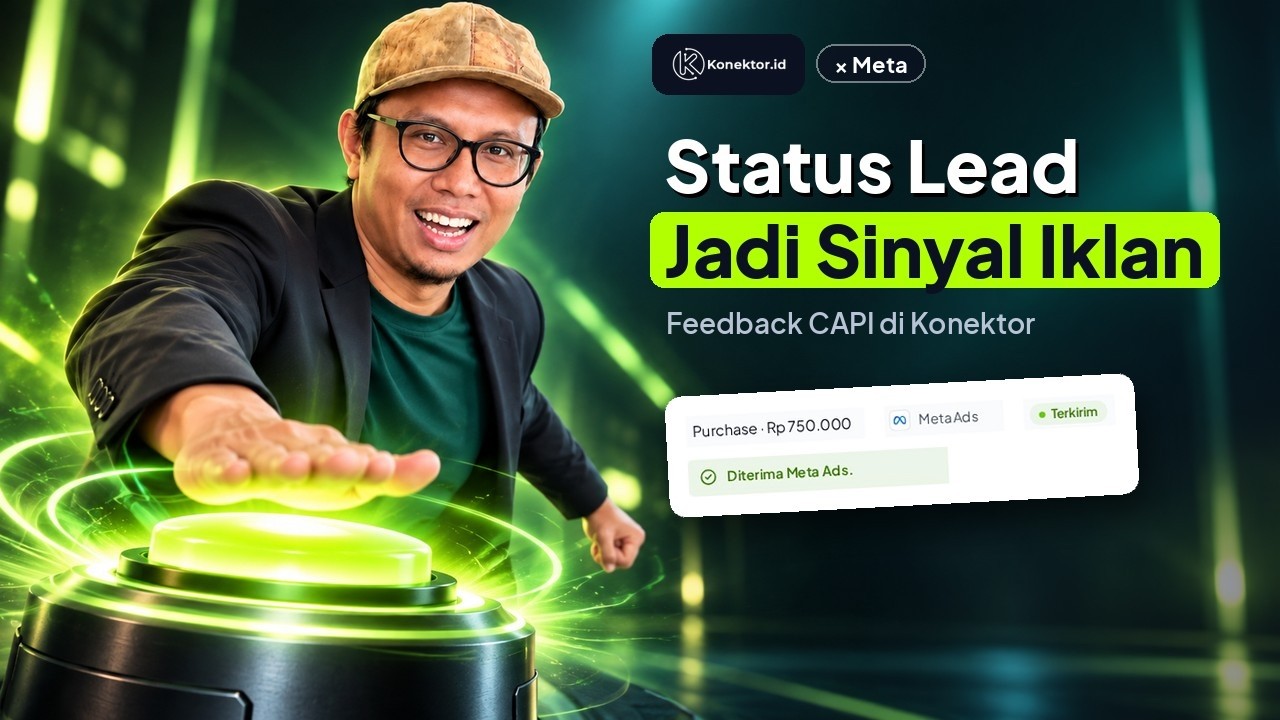
Turn lead status into an ad signal: send closings to Meta with Konektor in 1 minute (Indonesian narration)
Turn lead status into an ad signal: send closings to Meta with Konektor in 1 minute (Indonesian narration) • 0:54
Tonton di YouTubeConversion Settings Configuration
The Conversion Settings page allows you to control how Konektor reports events/conversions back to ad platforms (Meta Ads, Google Ads, TikTok Ads, ChatGPT Ads, LinkedIn Ads) when a Lead status changes.
This feature is very powerful for optimizing ads based on real results (Purchase/Closing) rather than just WA button clicks.
1. Event Mapping
Konektor uses Target Status logic to report conversions. The system no longer relies on "status changes" (e.g., A to B), but instead looks at the Final Status of the Lead.
This means as soon as a Lead reaches a specific status (whether upon initial entry or during an update), Konektor will send the corresponding event for that status to the ad platforms.
Default Mapping (Type: Sales)
The following is the standard mapping used by the system based on Lead Status:
| Lead Status | Meta Event | Google (GA4) Event | TikTok Event | LinkedIn Event | ChatGPT Ads Event |
|---|---|---|---|---|---|
pageview | PageView | page_view | ViewContent | PAGE_VIEW | - |
new | AddToCart | generate_lead | ViewContent | PAGE_VIEW | lead_created |
contacted | Contact | working_lead | Contact | CONTACT | - |
responded | Lead | working_lead | Lead | LEAD | - |
qualified | Lead | qualify_lead | Lead | QUALIFIED_LEAD | qualified_lead (custom event) |
hot | SubmitApplication | working_lead | SubmitApplication | QUALIFIED_LEAD | - |
proposal | InitiateCheckout | working_lead | InitiateCheckout | REQUEST_QUOTE | checkout_started |
negotiation | AddPaymentInfo | working_lead | AddPaymentInfo | REQUEST_QUOTE | - |
invoice | AddPaymentInfo | add_payment_info | AddPaymentInfo | REQUEST_QUOTE | - |
won | Purchase | purchase | Purchase | PURCHASE | order_created |
lost | LeadLost | close_unconvert_lead | - | - | - |
Status lost
Meta and TikTok have no standard event for a lost lead. Konektor sends the custom
event LeadLost to Meta. Use it for exclusion audiences, not for optimization.
TikTok, LinkedIn, and ChatGPT Ads receive no event for the lost status.
Status pageview vs new
pageview(Visitor): Used when the tracker (track.min.js) detects an initial visit. This status triggers the PageView event (if enabled/mapped).new(Lead): Used when a visitor takes a real action (like clicking a WhatsApp Link). This status will send the first conversion (usuallyViewContentorContact).
Note
Events are only sent once per event category (e.g., a Purchase event is only sent once even if the status is updated multiple times to won).
Google Ads: GA4 vs Ads API
Konektor supports two Google reporting paths:
- GA4: Events go to GA4 and you import them into Google Ads.
- Ads API: Events go directly to Google Ads through Google Ads API (Offline Conversion) using an Conversion type ID.
If you use Ads API, the system uses the default Conversion type ID from the Google Pixel first. In Conversion Settings, you only need to fill a per-status Conversion type ID override when you want to replace the Conversion type ID for a specific status. GA4 mapping still lives in the Google (GA4) column.
Conversion Label
Conversion Label is only used for online tags (e.g., GTM). Ads API mode does not use Conversion Label.
Recommendation: use Ads API for bidding optimization and GA4 for additional analytics.
To see which events Google Ads receives through the Ads API, read Google Ads tracking software.
Official references:
How to find Conversion type ID (Google Ads API (Offline Conversion))
Use these steps when you use Ads API and need Conversion type ID.
- Open Google Ads → Goals → Conversions.
- Click the Conversion Action you want to use.
- On the details page, look at the URL in your browser.
- Find ctId=123456789 in that address. The number after ctId= is the Conversion type ID.
Do not confuse these values
The Conversion type ID is the number after ctId= in the conversion action details address. It is not the Conversion ID and not the Conversion Label shown in Tag setup.
How to find Conversion ID and Conversion Label (Google Ads)
Use these steps when you install online tags (GTM or gtag) and need Conversion ID and Conversion Label.
- Open Google Ads → Goals → Conversions.
- Click the Conversion Action you want to use.
- Go to Tag setup.
- Choose Tag Manager (or your preferred installation method).
- Copy the Conversion ID and Conversion Label shown there.
Official Google doc:
Example:
- Conversion ID:
1234567890 - Conversion Label:
AbCdEfGhIjKlMnOpQrSt
Ads API note
If you use Google Ads API (Offline Conversion), the system uses an Conversion type ID. You can use one default Conversion type ID in the Google Pixel, then add per-status overrides only when needed. Conversion Label is only required for online tags.
Change the Event for a Status
You can pick a different event for each status and platform. Open Tracking & Ads > Conversions, then change a cell in the Event for each lead status table. Meta, Google, TikTok, and LinkedIn use their list of standard events. Only ChatGPT Ads accepts your own event name through Custom event.
Disable Event
If you want to stop sending events for a specific status, select Not sent in that cell. Konektor does not send an event for that status to that platform.
When the Conversion type ID override field appears
The Conversion type ID field in the Google cell of the Event for each lead status table only appears when the Google Pixel is active in Ads API mode. If the Google Pixel is still using GA4 mode, the Conversion type ID field stays hidden.
2. Platform Standard Events
Meta Pixel Standard Events
When creating custom mappings, you can choose from all Meta Pixel Standard Events:
| Event | Description | Use Case |
|---|---|---|
| Core Conversion | ||
Purchase | Purchase completed | Final checkout/payment |
Lead | Sign up completed | Form submissions |
Contact | Contact initiated | WhatsApp, phone, chat |
CompleteRegistration | Registration completed | Account creation |
| Shopping Events | ||
AddPaymentInfo | Payment info added | Pre-checkout step |
AddToCart | Added to cart | Product interest |
AddToWishlist | Added to wishlist | Product interest |
InitiateCheckout | Started checkout | Checkout intent |
ViewContent | Viewed page/product | Product views |
Search | Performed search | Search queries |
| Subscription Events | ||
StartTrial | Started free trial | Trial signups |
Subscribe | Subscribed to service | Subscription conversions |
| Service Events | ||
Schedule | Booked appointment | Appointment booking |
FindLocation | Searched for location | Store locator |
SubmitApplication | Submitted application | Applications |
CustomizeProduct | Customized product | Product customization |
Donate | Made donation | Donations |
Google Analytics 4 (GA4) Recommended Events
Konektor supports all GA4 Recommended Events. GA4 events use lowercase with underscores format:
| Event | Description | Use Case |
|---|---|---|
| Lead Lifecycle Events | ||
generate_lead | Lead generated | Form submission, first contact |
qualify_lead | Lead qualified | Lead scoring threshold |
working_lead | Lead being worked | Follow-up in progress |
close_convert_lead | Lead successfully closed | Deal won |
close_unconvert_lead | Lead did not close | Deal lost |
disqualify_lead | Lead disqualified | Not qualified |
| E-commerce Shopping | ||
purchase | Purchase completed | Transaction completed |
add_to_cart | Added to cart | Product interest |
add_to_wishlist | Added to wishlist | Product interest |
remove_from_cart | Removed from cart | Cart abandonment |
view_cart | Viewed cart | Cart review |
view_item | Viewed product | Product page view |
view_item_list | Viewed product list | Category page |
select_item | Selected product | Product selection |
begin_checkout | Started checkout | Checkout started |
add_payment_info | Payment info added | Payment step |
add_shipping_info | Shipping info added | Shipping step |
search | Performed search | Search queries |
refund | Refund processed | Refund processed |
| Promotion Events | ||
view_promotion | Viewed promotion | Banner views |
select_promotion | Selected promotion | Banner clicks |
| Account Events | ||
login | User logged in | Login events |
sign_up | User signed up | Registration |
| Engagement Events | ||
share | Content shared | Social sharing |
select_content | Content selected | Content engagement |
GA4 Event Format
Note that GA4 uses lowercase with underscores format (e.g., generate_lead, add_to_cart), unlike Meta which uses PascalCase (e.g., Lead, AddToCart).
TikTok Events API Standard Events
Konektor supports all TikTok Events API Standard Events. TikTok Events use PascalCase format:
| Event | Description | Use Case |
|---|---|---|
| E-commerce Events | ||
Purchase | Payment completed | Transaction completed |
AddToCart | Added to cart | Product interest |
AddToWishlist | Added to wishlist | Product interest |
InitiateCheckout | Checkout started | Checkout started |
AddPaymentInfo | Payment info added | Payment step |
ViewContent | Page viewed | Page/product view |
Search | Search performed | Search queries |
| Lead & Form Events | ||
Lead | Form submitted | Form submissions |
Contact | Contact occurred | WhatsApp, phone, chat |
CompleteRegistration | Registration completed | Account creation |
SubmitApplication | Application submitted | Applications |
ApplicationApproval | Application approved | Approval flows |
| Subscription Events | ||
StartTrial | Trial started | Trial signups |
Subscribe | Subscription made | Subscriptions |
| Service Events | ||
Schedule | Appointment booked | Appointments |
FindLocation | Location searched | Store locator |
CustomizeProduct | Product customized | Product config |
Download | Download clicked | App downloads |
TikTok Event Names
TikTok uses PascalCase format like Meta (e.g., Purchase, AddToCart). Make sure to use the exact event names as they are case-sensitive.
ChatGPT Ads Standard Events
Konektor sends the ChatGPT Ads standard events below. Only a standard event can be a campaign optimization goal. Select the event in the ChatGPT Ads column of the Mapping tab.
| Event | Label in Konektor | Example Use |
|---|---|---|
lead_created | Lead created | A new lead arrives |
registration_completed | Registration completed | Account creation |
appointment_scheduled | Appointment scheduled | Booking a schedule |
checkout_started | Checkout started | Proposal sent |
order_created | Purchase | Closed sale |
subscription_created | Subscription started | Paid subscription |
trial_started | Trial started | Trial sign-up |
contents_viewed | Content viewed | Product page viewed |
items_added | Added to cart | Product added to cart |
page_viewed | Page viewed | Page visit |
ChatGPT Ads custom events
Select Custom event to send an event with your own name, for example qualified_lead. Use lowercase letters, digits, underscores, or hyphens. A custom event cannot be an optimization goal.
See the full steps in Connect ChatGPT Ads.
To see which events go to ChatGPT Ads and what its limits are, read ChatGPT ads tracking software.
LinkedIn Conversions API Events
This table lists the LinkedIn conversion categories you can pick in the event table. LinkedIn uses UPPERCASE format:
| Event | Description | Objective |
|---|---|---|
| Conversion Events | ||
PURCHASE | Transaction completed | Conversion |
ADD_TO_CART | Added to cart | Conversion |
START_CHECKOUT | Started checkout | Conversion |
SIGN_UP | Account created | Conversion |
INSTALL | App installed | Conversion |
| Lead Events | ||
LEAD | Form submitted | Lead Gen |
CONTACT | Contact occurred | Lead |
BOOK_APPOINTMENT | Scheduled meeting | Lead |
REQUEST_DEMO | Demo requested | Lead |
DOWNLOAD | File downloaded | Lead |
| Consideration Events | ||
VIEW_CONTENT | Page viewed | Consideration |
KEY_PAGE_VIEW | Key page viewed (pricing) | Consideration |
SEARCH | Search performed | Consideration |
SUBSCRIBE | Subscribed | Consideration |
SAVE | Saved for later | Consideration |
| Other | ||
OTHER | Custom event | Varies |
LinkedIn Conversion ID
One LinkedIn connection uses one Conversion ID. Every event from that connection goes to the same conversion rule in Campaign Manager. LinkedIn counts the category set on that rule, not the event name in the table.
How delivery to one LinkedIn conversion rule works is explained in LinkedIn ads tracking software.
3. Send Strategy (Strict Mode vs Send All)
Konektor provides flexibility in how you send conversion data. You can choose this strategy in Tracking & Ads > Conversions, in the Send strategy section.
Option 1: Strict mode (default)
To maintain your ad algorithm data quality and prevent organic data from mixing with ad data.
Note
Read the full comparison between strategies in the Conversion Strategy Guide.
- How it Works: Conversion events are only sent when the minimum platform-specific data is available.
- Google GA4: Requires
ga_client_idwhen the event is sent. Click IDs such asgclid,wbraid, orgbraidstill matter for attribution, but they do not replacega_client_idin this mode. - Google Ads API: Can use
gclid,wbraid,gbraid, or sufficient hashed identifiers for direct upload. - "Skipped" Status: If the minimum data is missing, the system records a Skipped status in the Delivery log. For Meta, a lead that did not come from a Meta ad click shows Skipped with the Strict mode reason. This is normal during a test without an ad click.
- Benefits: Cleaner attribution for ROI. Ad platforms only receive data from actual ad clicks.
Option 2: Send all
To maximize data signals for the ad algorithm (AI Learning).
- How it Works: Sends all qualifying conversion events, regardless of whether a Click ID exists.
- Matching: Platforms will use hashed personal data (Email/Phone) to match users (Advanced Matching).
- Benefits: Helps ad algorithms learn faster and capture Cross-Device conversions.
How to Change
Open Tracking & Ads > Conversions. Select Strict mode or Send all in the Send strategy section, then click Save changes.
Detailed statuses in Delivery log
No matter which strategy you use, Delivery log still uses the same detailed statuses:
- Queued: the event waits for its turn to send.
- Sent: the platform received the event.
- Failed: the sending failed before the platform received it.
- Skipped: the event was intentionally not sent because the minimum data, consent, or configuration was not sufficient.
4. Value Settings
Konektor allows you to send monetary value (revenue) to ad platforms to calculate ROAS (Return on Ad Spend) accurately. Turn on Send conversion value in the Conversion value section, then pick a Value source:
- Estimated value: The estimated value when the lead first enters.
- Closing value: The real transaction value (e.g., the final deal value).
- Fixed value: A fixed value for every conversion (e.g., IDR 10,000 per lead).
Ask for a Value at a Status Change
Konektor can ask the CS to enter the deal value when the CS changes a lead status to a specific status, for example Closed won (won) or Invoice sent (invoice). Select those statuses in the Ask for a value when the status changes to field.
When you choose the closing stage in Inbox or Leads, Konektor opens a Closing value box. The Purchase event sent to Meta uses this Closing value. The lead detail and the Inbox panel show a delivery badge (Sent to Meta, Queued, Failed, or Skipped) that leads to the Delivery log of that lead. The Loss stage asks for confirmation.
5. Supported Platforms
Konektor supports modern server-side integrations for:
- Meta Ads: Via Conversions API (CAPI).
- Google Ads: Via Enhanced Conversions.
- TikTok Ads: Via Events API.
- LinkedIn Ads: Via Conversions API.
- ChatGPT Ads: Via Conversions API.
Ensure you have completed the necessary configuration in Website Tracking (Tracking & Ads > Website Tracking).
A status change can also come from a rule when a lead joins a WhatsApp group. See track ads to a WhatsApp group.
Still choosing a tool? Read how to choose ad tracking software.
Full example
See the umrah travel scenario: from a Click-to-WhatsApp ad to a deposit sent to Meta, with templates and a video. For a long sales cycle, read the hajj travel ad tracking scenario: lead statuses, CS follow-up, and the deposit point. Umrah and Hajj travel agencies that run Meta, Google, and TikTok ads can also read ad tracking software for Umrah and Hajj travel.
When the event does not match
Need More Help?
Our team is ready to help you maximize ad tracking and business attribution.
Wulan answers your questions and sends tutorial videos. Session scheduling is available through Wulan if you still need it.
© 2026 Konektor. All rights reserved.