
Knowledge
Knowledge is a set of FAQs, price lists, and business info that you own. The agent looks for an answer here before it replies to a customer. The agent answers from your data and does not guess.
Konektor pays the cost to process Knowledge.
The agent already uses the business profile and Quick Replies automatically. Do not add them as sources. The Knowledge tab shows them in the Always used by Wulan block, with the Edit and Manage links.
What you need
- The owner or admin role in the workspace.
- A saved OpenRouter key. Read Agentic.
- A Replies model with the Supports tools label. The agent does not use Knowledge with other models.
Three kinds of source
| Kind | Content | Good for |
|---|---|---|
| Questions and answers | Pairs of a question and an answer | Questions that customers often ask |
| Product and price catalog | A CSV file, or a Google Sheets link | Lists of products, prices, and stock |
| Free text | Text that you write | Return policy, opening hours, how to order |
Add a source
- Open Wulan AI → Agent & model.
- Click the Knowledge tab.
- Click Add source. If you have no source yet, click Add your first source.
- Choose the Kind of source.
- Fill in Source name, for example
Shop FAQ. - Fill in the data for the kind. See the sections below.
- Click Save and process.
- Wait until the status of the source changes from Processing to Ready.
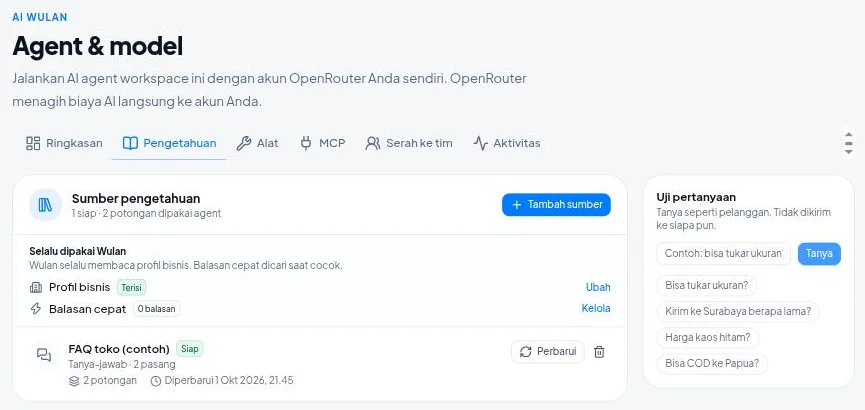
The agent uses a source after its status is Ready.
Questions and answers
- Fill in Question and Answer.
- Click Add pair for the next pair.
- Click Delete pair to remove one pair.
Write a complete and clear answer. Put one subject in each pair.
Catalog from a CSV file
- Choose Upload CSV under Data from.
- Click Choose CSV file.
- Select the file on your computer.
The first row of the file must have column titles, for example Name, Price, Stock. The file must have at least one data row.
To use a different file, click Replace file.
Catalog from Google Sheets
You must publish the Google Sheet as CSV. Without this step, Konektor cannot open the link.
- Open your Google Sheet.
- Click File → Share → Publish to web.
- Choose the sheet that has the catalog.
- Choose the CSV format.
- Click Publish.
- Copy the link that appears.
- In Konektor, choose Google Sheets link under Data from.
- Paste the link in the Google Sheets link field.
The first row of the sheet must have column titles.
Anyone who has the link can read the published sheet. Do not put secret data in this sheet.
After you change the sheet, click Refresh on that source in Konektor.
Free text
- Write the content in the Text field.
- Write your return policy, opening hours, how to order, or other info.
Konektor splits long text into parts automatically. The agent takes only the parts that match the question of the customer.
Test a question
Test before you turn on auto-reply.
- In the Knowledge tab, find the Test a question panel.
- Type a question in the Test question field, for example
Can I change the size?. You can also click one of the examples. - Click Ask.
Nobody receives the test question.
The result is one of two types:
- The agent would answer from these parts: a list of the matching parts of your sources, with the name of each source.
- The agent is not sure: your sources do not answer the question yet. The panel shows The closest parts.
If the agent is not sure, add the answer to a source. Then test again.
Result
- The card of each source shows its kind, how much it holds (pairs, rows, or parts), its status, and when it was updated.
- The summary above the list shows how many sources are Ready and how many pieces the agent uses.
- Reply drafts and automatic replies use the sources to answer.
Manage sources
| Action | How |
|---|---|
| Refresh the content from Google Sheets | Click Refresh on the card of the source |
| Try a failed source again | Click Try again on the card of the source |
| Delete a source | Click the delete icon, then click Delete |
When you delete a source, Konektor also deletes all of its parts. The agent can no longer answer from that source.
Common problems
| Message | Cause and fix |
|---|---|
| The content is too large. Reduce the rows or the text, then try again. | The source is over the limit. Remove rows or text. |
| The link could not open. Make sure the Google Sheet is published as CSV, then try again. | The sheet is not published. Do the Google Sheets steps again. |
| The link must be a Google Sheet that is published as CSV. | The link that you pasted is not a publish link. Copy the link from the Publish to web window. |
| The content could not be read. Make sure the first row has column titles and there is at least one data row. | Add column titles in the first row and at least one data row. |
| Processing did not finish. Try again in a moment. | Click Try again after a few minutes. |
| The knowledge limit is full. Delete a source you do not use, then try again. | Delete a source that you do not use. |
| You reached the limit of sources. Delete one first. | Delete one source, then add the new one. |
The agent does not answer from Knowledge? Check these three items:
- The status of the source is Ready.
- The Replies model has the Supports tools label.
- The Test a question panel finds a matching part.
Limits
| Limit | Value |
|---|---|
| Sources in a workspace | 20 |
| Question and answer pairs in one source | 500 |
| Rows in one catalog | 2,000 |
| Characters in one free text | 50,000 |
| Pieces in the whole workspace | 3,000 |
| Characters in a source name | 80 |
| Characters in a question | 300 |
| Characters in an answer | 2,000 |
A piece is one small part of a source. One question and answer pair and one catalog row each become one piece. A long text becomes several pieces.
See also
Need More Help?
Our team is ready to help you maximize ad tracking and business attribution.
Try or continue
© 2026 Konektor. All rights reserved.