
Ads Research
Ads Research puts four things on one page:
- competitor ads that run now,
- a swipe file for creative references,
- the performance of your own creatives by hook, format, and offer,
- ad reports that you can share by link or email.
Open Tracking & Ads > Ads Research.
What you need
- The Owner or Admin role in the workspace.
- A Meta ad account connected in Ad Spend. With this connection, Konektor checks competitor ads on Meta every day and fills Creative Performance.
- Without a Meta connection, you can still open the ad library of each platform and save ads by hand.
Ad platforms do not show the spend, impressions, or targeting of competitor ads. Ads Research shows the ads that run now and how long each ad has run.
Step 1: Read this week's digest
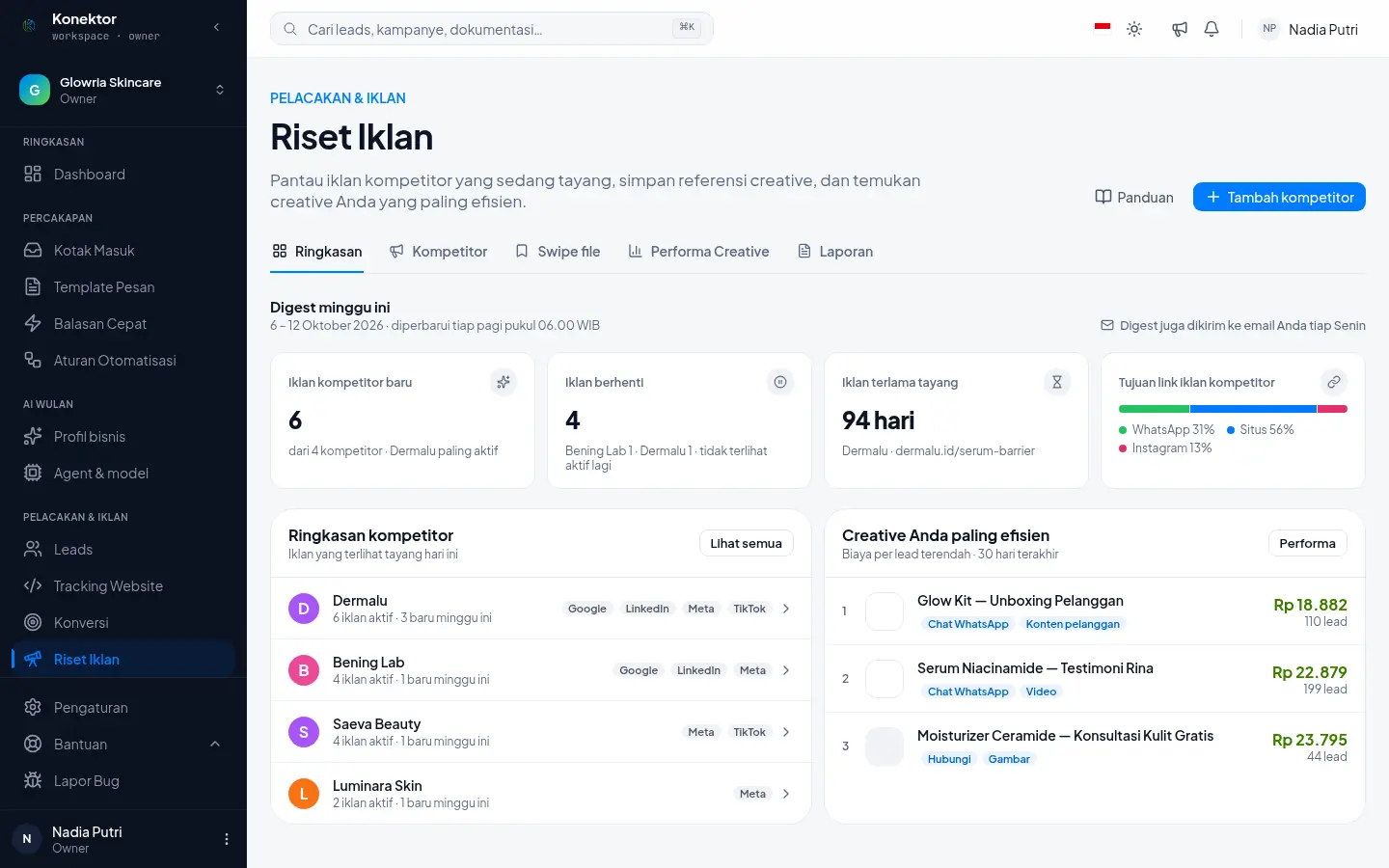
The Overview tab shows This week's digest:
| Card | What it shows |
|---|---|
| New competitor ads | Competitor ads seen for the first time this week, and the most active competitor. |
| Ads that stopped | Ads that were not seen running again this week. |
| Longest running ad | The active ad that has run the longest. Long runners are often worth a study. |
| Where competitor ads send people | The split of link goals: WhatsApp, website, or Instagram. |
Below the cards you find Competitor summary and Your most efficient creatives: your three ads with the lowest cost per lead in the last 30 days.
Owners and Admins also receive the digest by email every Monday.
Step 2: Add a competitor
- Click Add competitor.
- Enter the Competitor name.
- In Facebook Page, paste the Page link or type the Page name, then click Search. Select the correct Page from the results.
- Fill in other sources if you have them: Google domain, TikTok brand name, and LinkedIn company. For LinkedIn, enter the numeric company ID or a link that contains it.
- Click Add competitor.
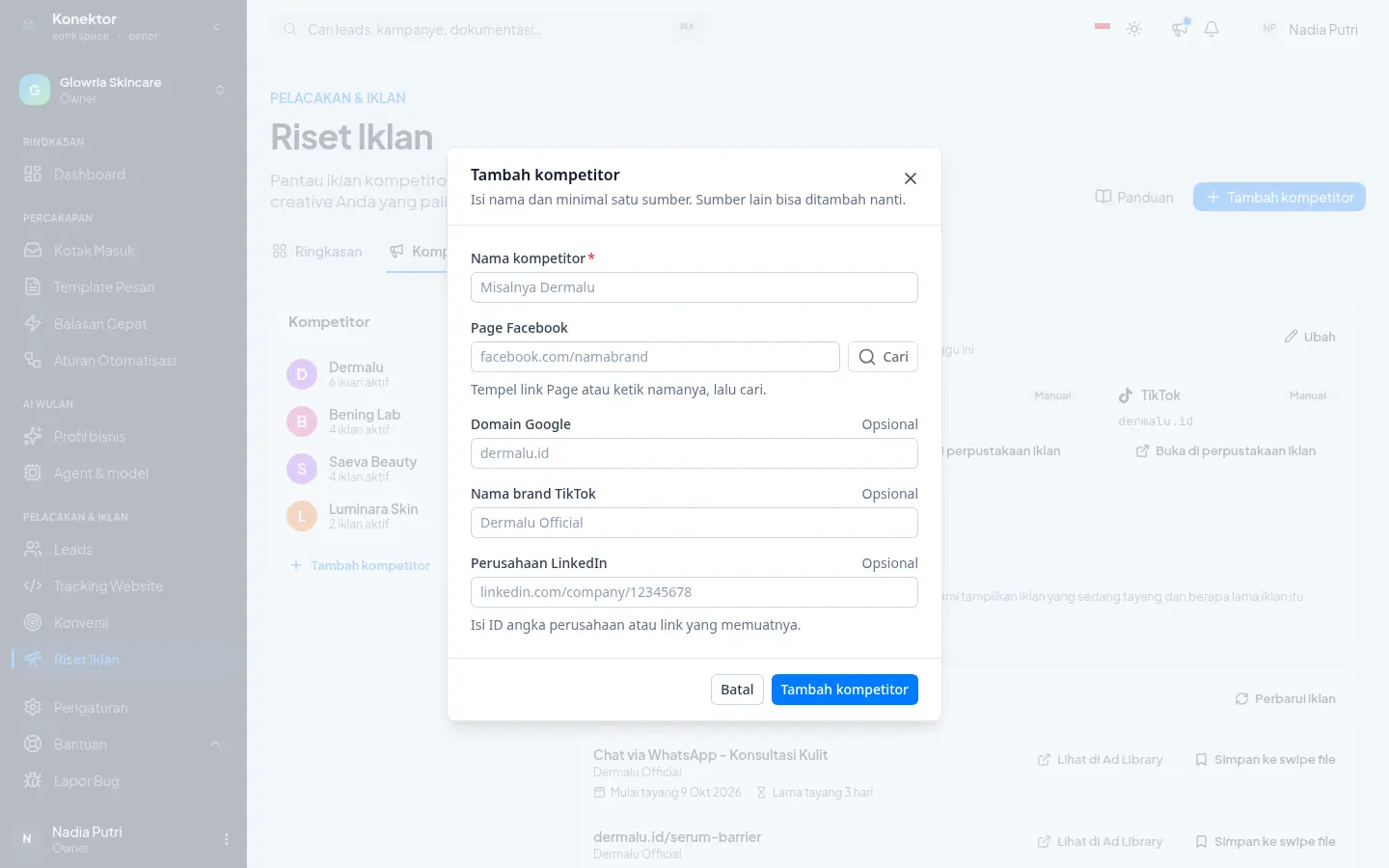
A name and one source are enough. You can add other sources later with Edit. The number of competitors follows your plan limit.
Step 3: Open the ad library of each platform
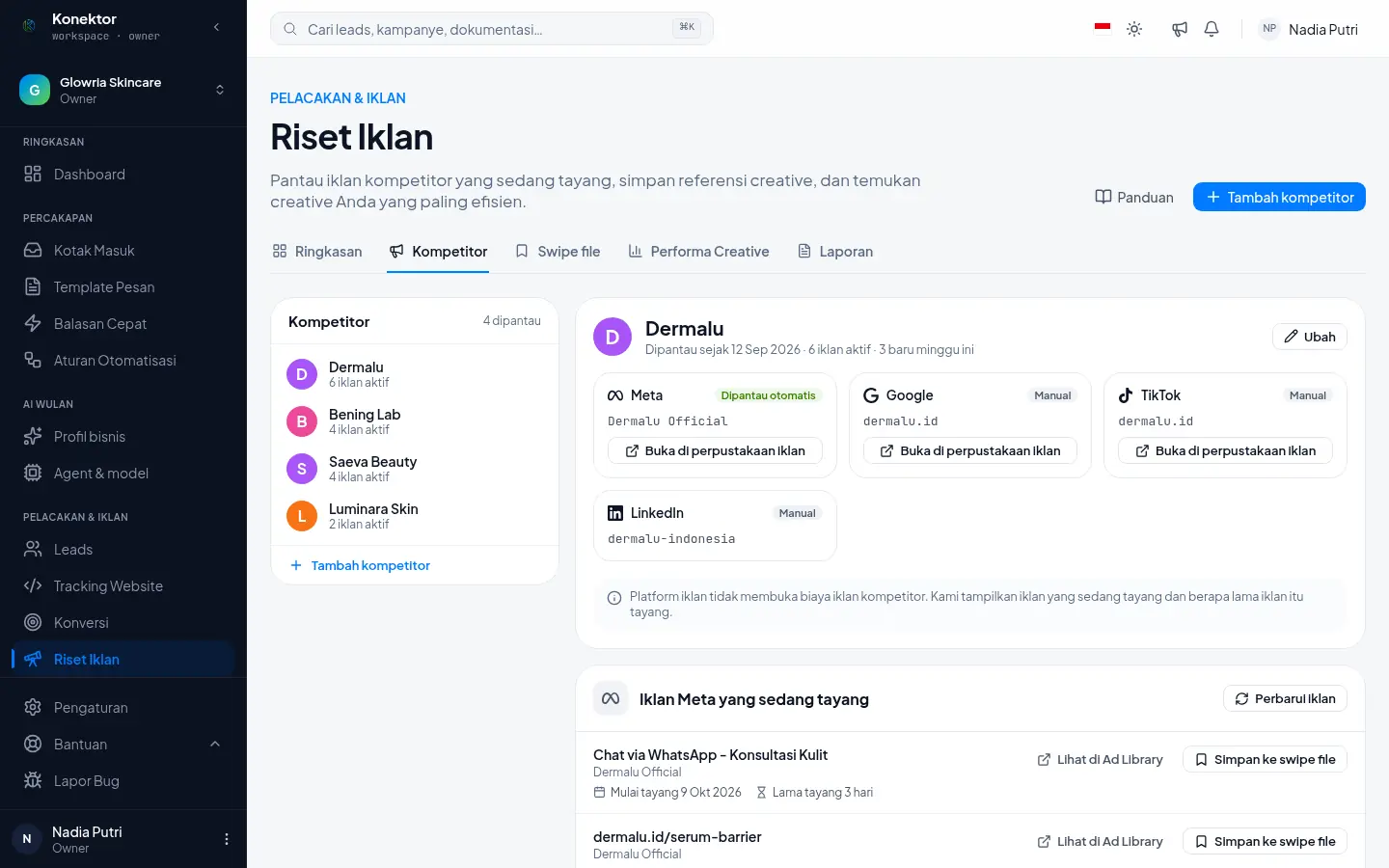
Open the Competitors tab and select a competitor in the list on the left. Each platform shows as a card:
- Meta shows Watched automatically. Konektor checks the competitor's active ads every day.
- Google, TikTok, and LinkedIn show Manual. Click Open in the ad library to open the official ad library of that platform in a new tab. The Indonesia country filter is already set.
Step 4: Study the Meta ads that run now
Scroll to Meta ads running now. Each row shows the link title, the Page name, the start date, and how many days the ad has run.
- Long runner marks ads that have run for more than 30 days.
- Not seen running marks ads that did not show in the last check.
- View in Ad Library opens the ad in Meta Ad Library.
- Save to swipe file saves the ad to your swipe file.
- Refresh ads checks the competitor's ads again now. You can use it once per hour.
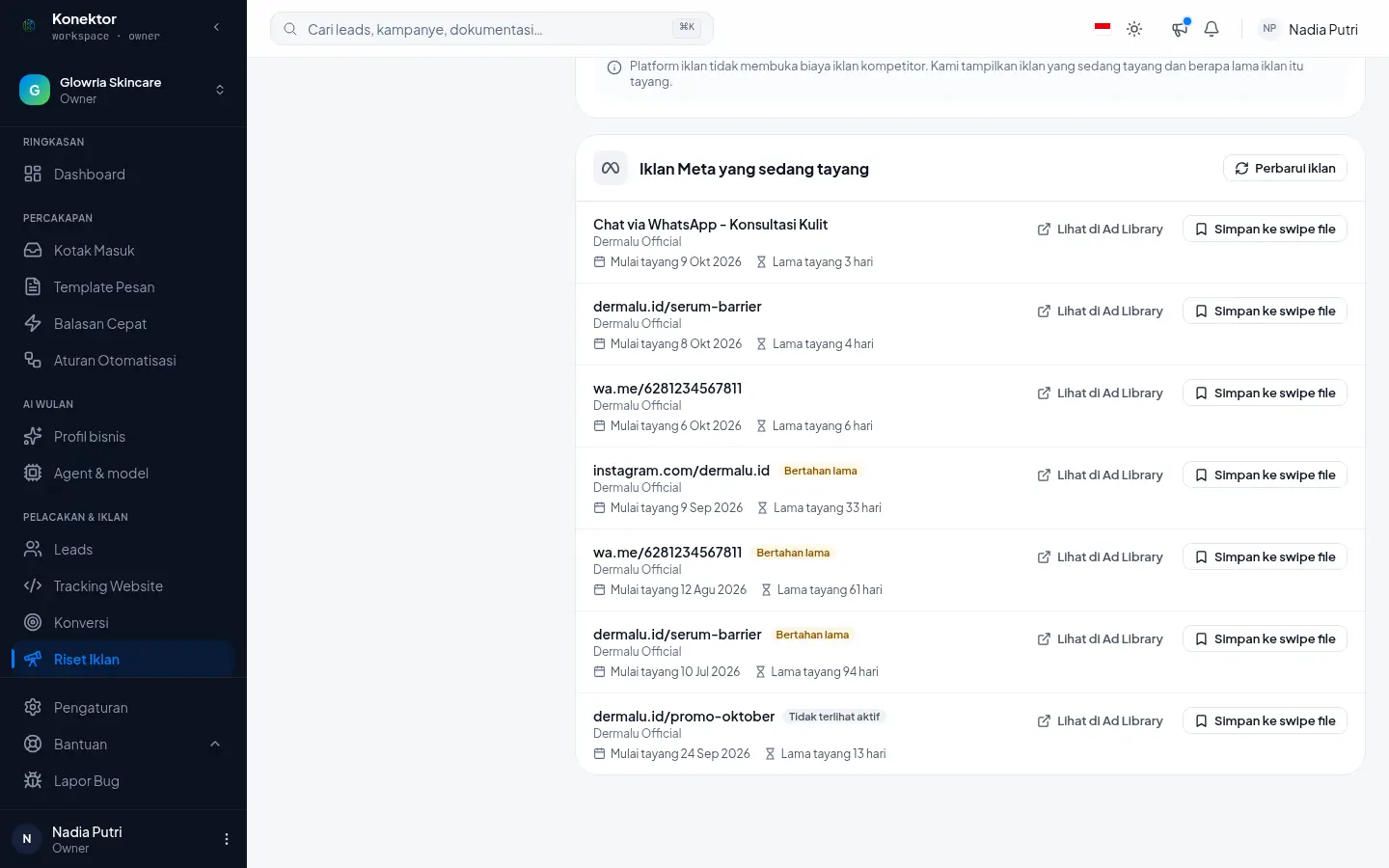
Run time shows which ads a competitor keeps using. Run time does not prove that an ad is profitable. Use it as a hint, then test the idea in your own ads.
Step 5: Manage your swipe file
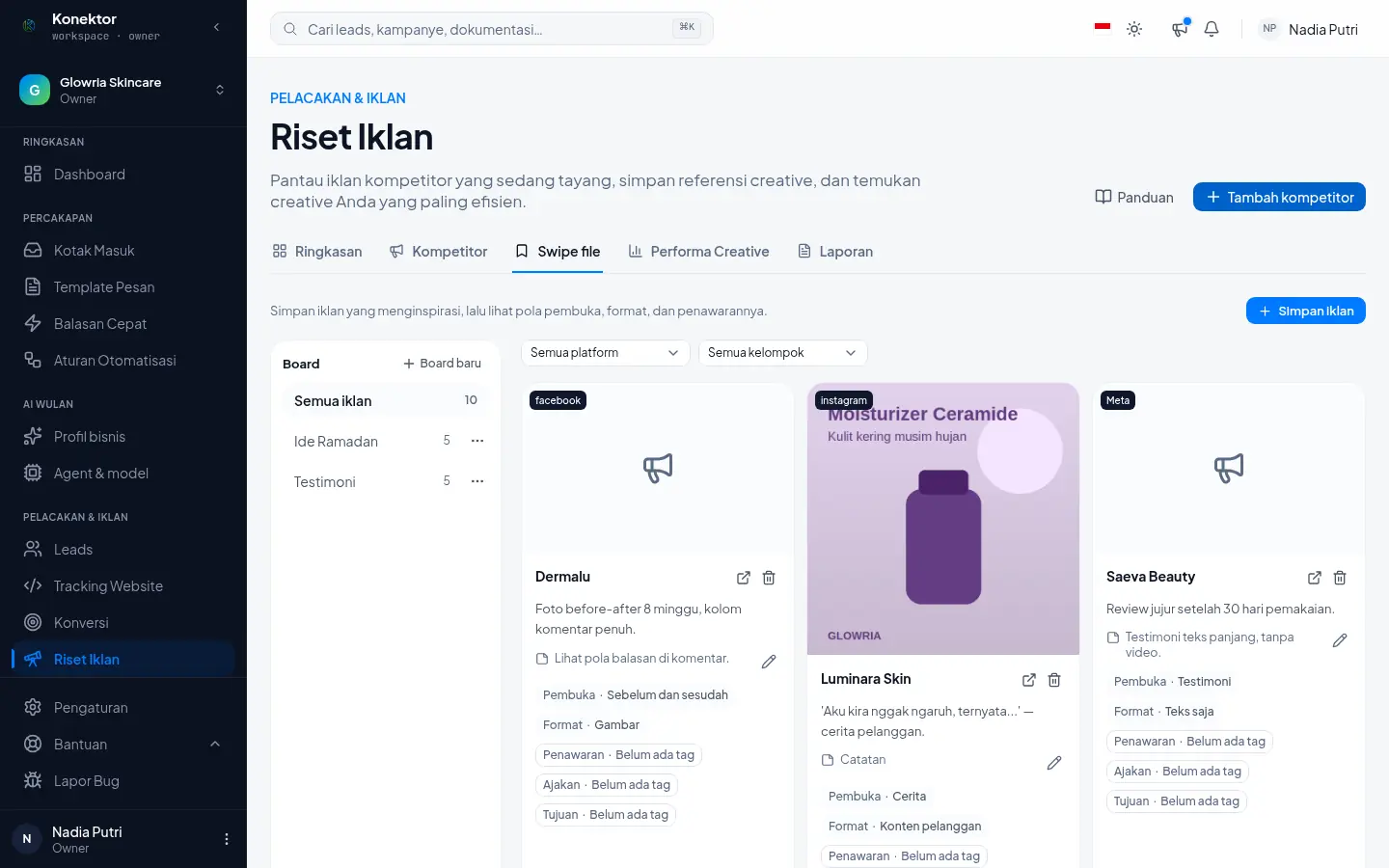
The Swipe file tab keeps ads that inspire you: competitor ads, your own ads, and ads that you add by hand.
- Boards on the left group your ads. Click New board to make one, for example "Ramadan ideas".
- Each card shows AI tags: Hook, Format, Offer, Call to action, and Goal.
- A Not sure tag means the AI is not confident. Owners and Admins can correct a tag with the pencil icon. Your correction replaces the AI tag.
- Use the platform and tag filters to look for patterns.
Step 6: Save an ad by hand
- Click Save ad.
- Enter the Ad link, Platform, and Brand.
- Paste the Ad text. The text helps the AI pick the right tags.
- Upload an image or a video: JPEG, PNG, or WebP up to 5 MB, or MP4 up to 50 MB.
- Select a Board, add a Note if you want, and click Save.
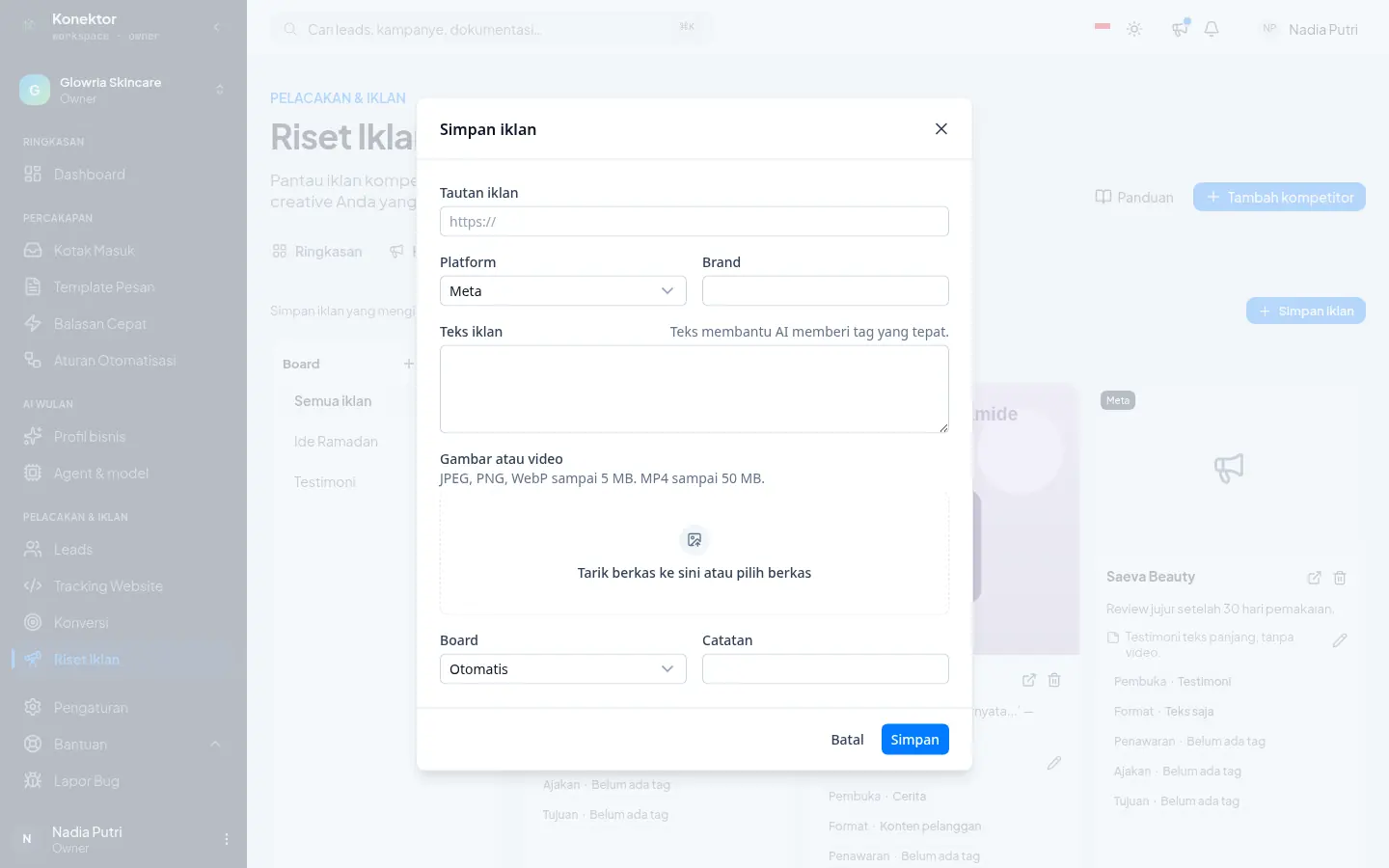
Konektor keeps the ad link as a link only. Tags appear a short time after you save the ad.
Step 7: Find your most efficient creatives
The Creative Performance tab compares your own ads by tag.
- In Group by, select Hook, Format, Offer, Call to action, or Goal.
- Select a date range: 7 days, 30 days, 90 days, or your own dates.
- Read the Results by tag table: number of ads, spend, leads, cost per lead, closings, and closing value.
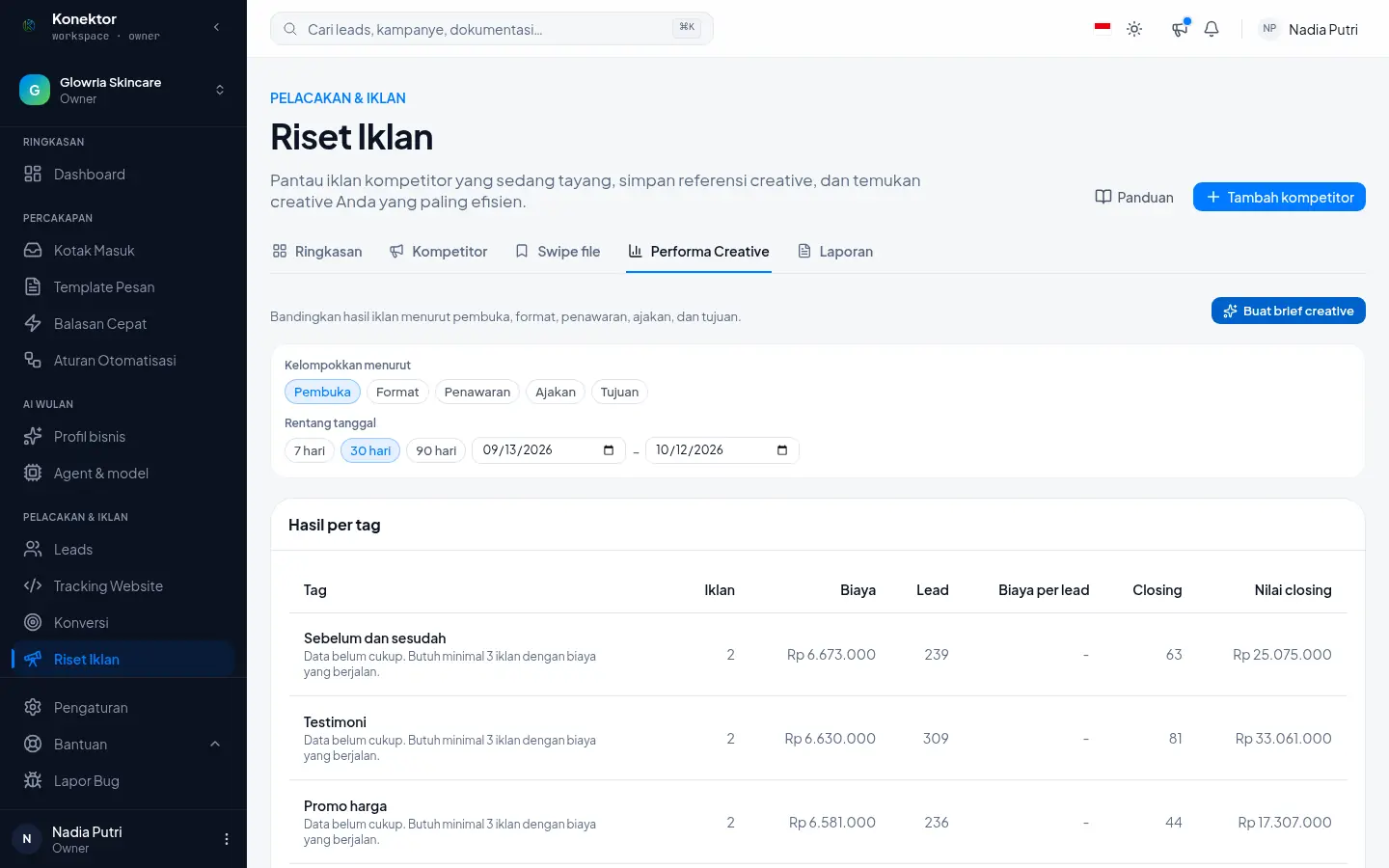
A group with fewer than 3 ads or very low spend shows "Not enough data". The cost per lead of that group stays hidden.
Click Create creative brief to let the AI write a brief from your best ads. The brief holds a hook, an angle, a format, an offer, and copy examples. A brief uses the monthly AI quota of your plan.
Step 8: Create an ad report
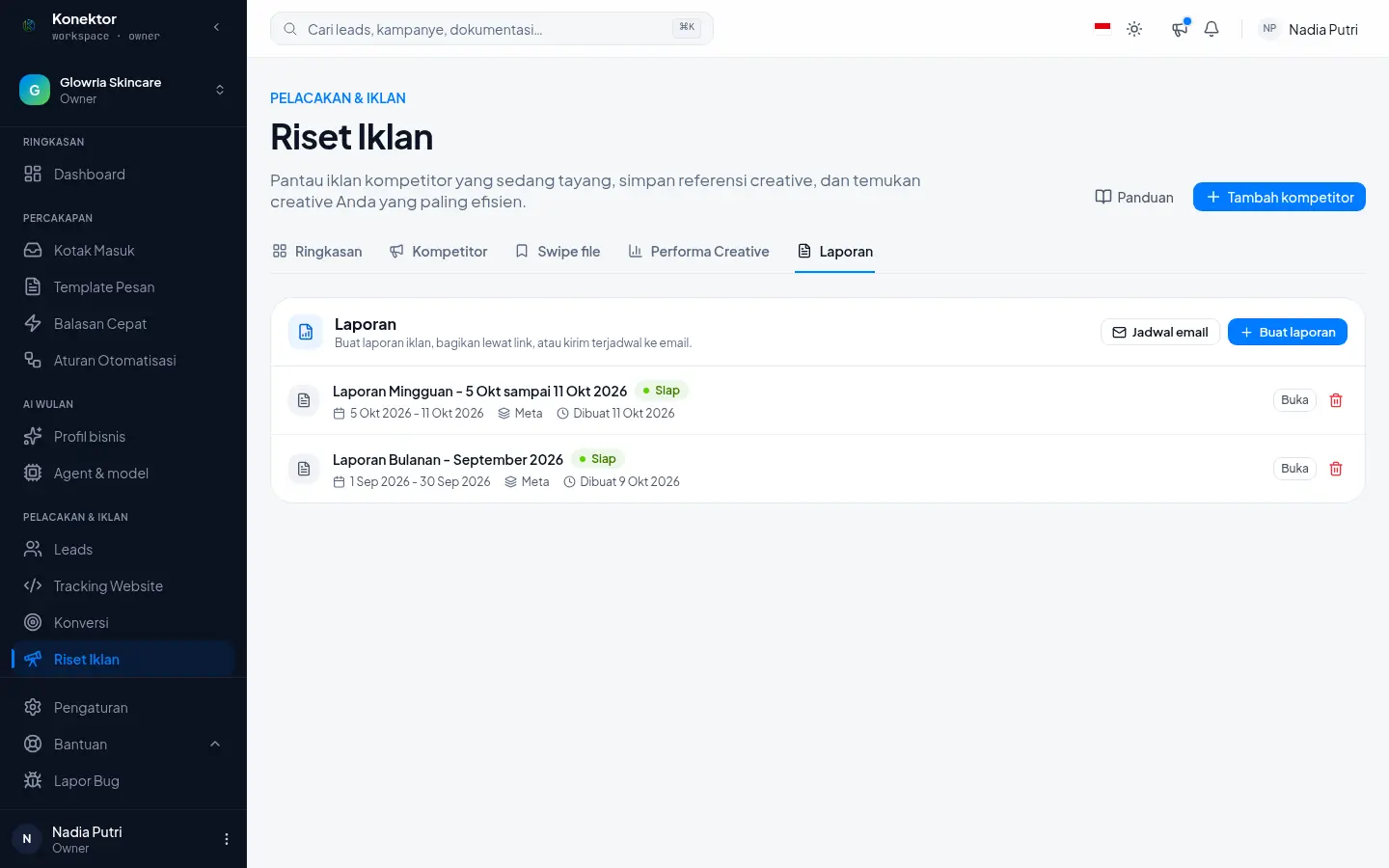
- Open the Reports tab and click Create report.
- Select a Report type: Monthly Report, Short Weekly Report, or Creative Performance.
- Select a Date range and the Platforms.
- Enter a title if you want, then click Create report.
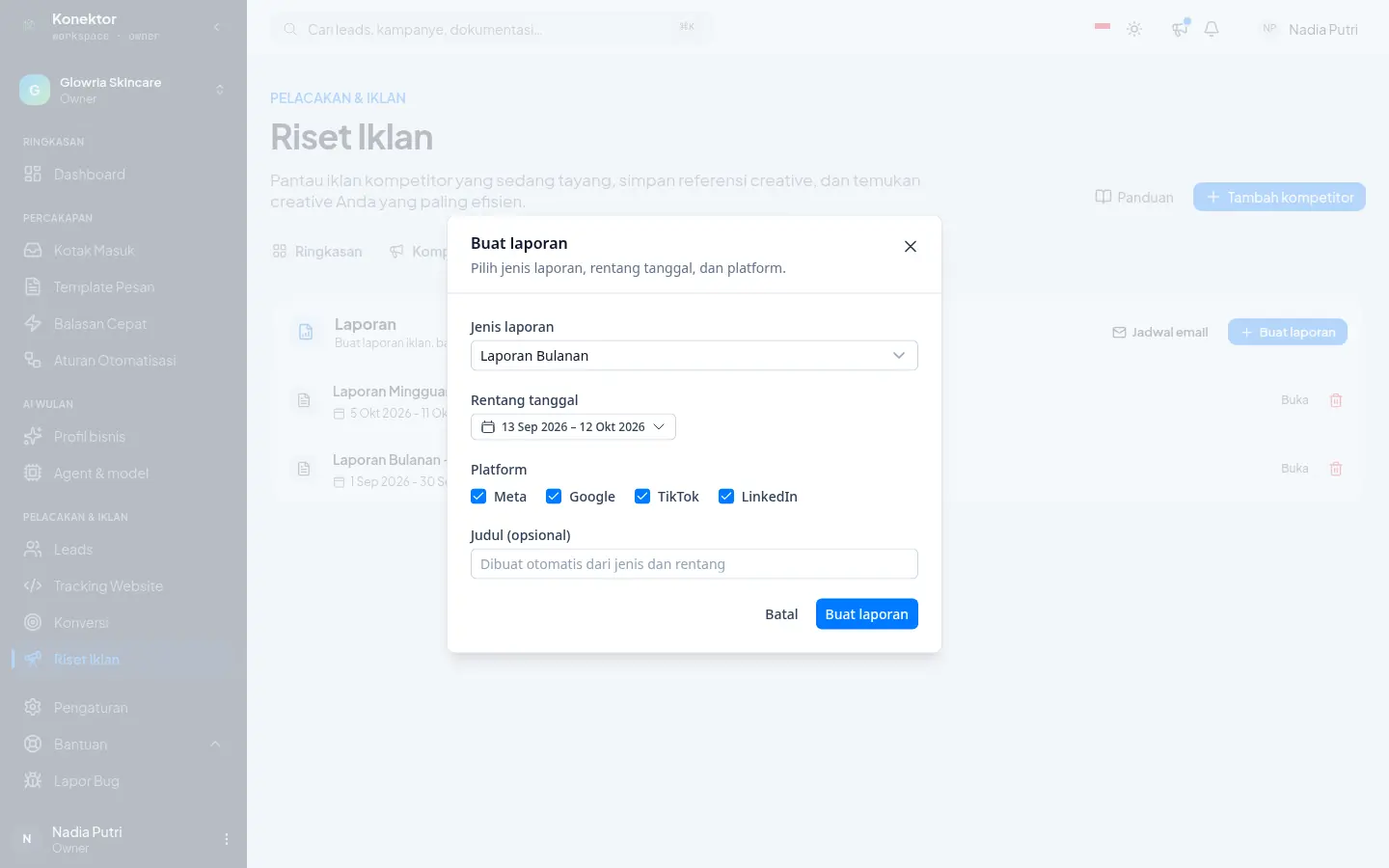
The report shows Being prepared, then Ready. Konektor freezes the numbers when it creates the report, so later changes in ad data do not change the report.
Step 9: Check and edit the summary
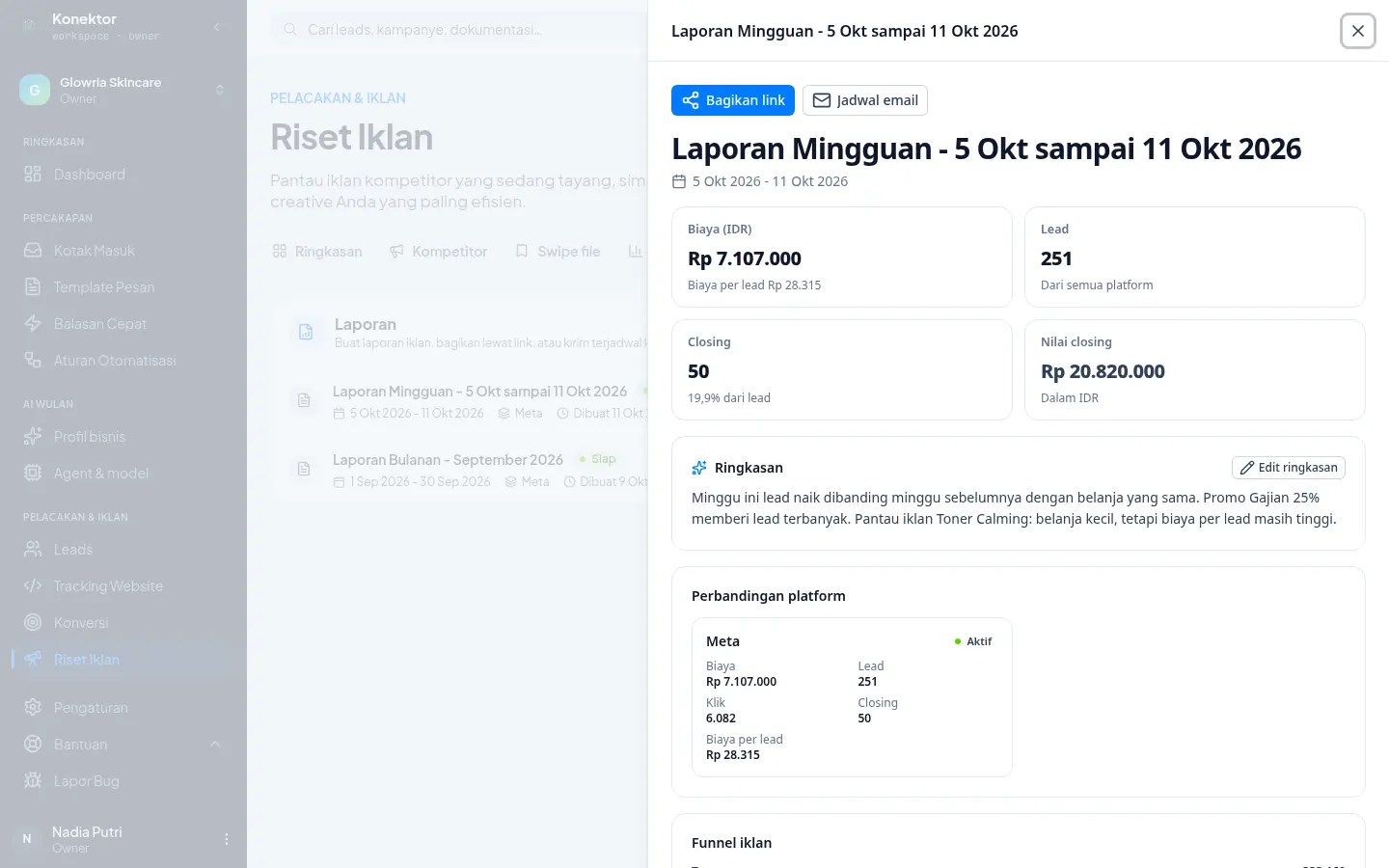
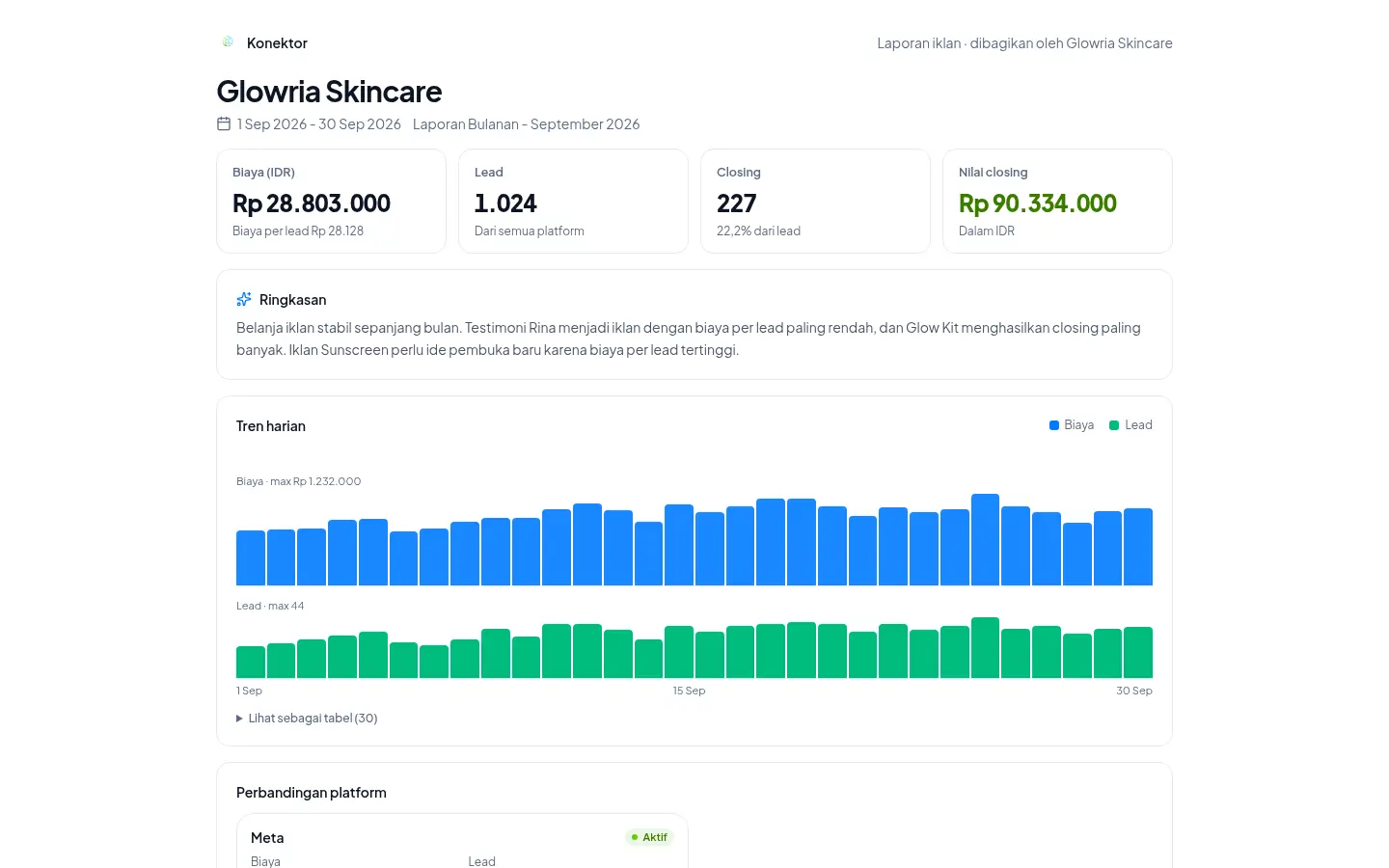
Click Open on a report. The report shows spend, leads, closings, closing value, an AI summary, a platform comparison, the ad funnel, and top creatives.
Click Edit summary to change the AI summary before you share the report. Spend in different currencies is never added together.
Step 10: Share by link
- In the report detail, click Share link.
- Select Valid for: 7 days, 30 days, 90 days, or no limit.
- Click Create link and copy it.
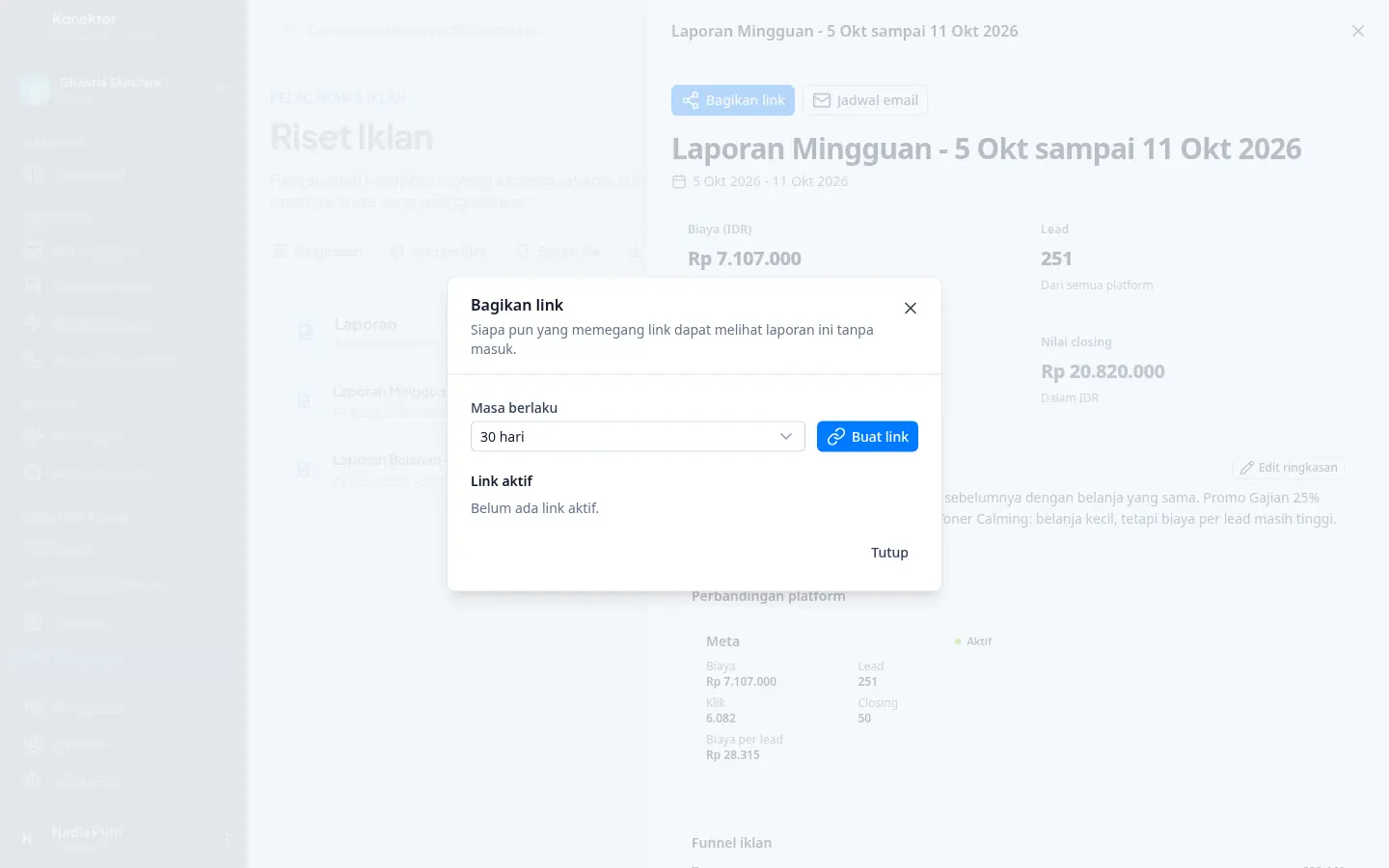
Anyone with the link can see the report without signing in to Konektor. The link shows only once, when you create it. Click Revoke on an active link to stop access.
Step 11: Send the report by scheduled email
- In the Reports tab, click Email schedule, then New schedule.
- Select the Report type and Sending: Weekly (day and time in WIB) or Monthly (on the 1st).
- Enter up to 10 Recipients. Set Reply to to an Owner or Admin email if you want.
- Click Save schedule. The switch on a saved schedule turns sending on or off.
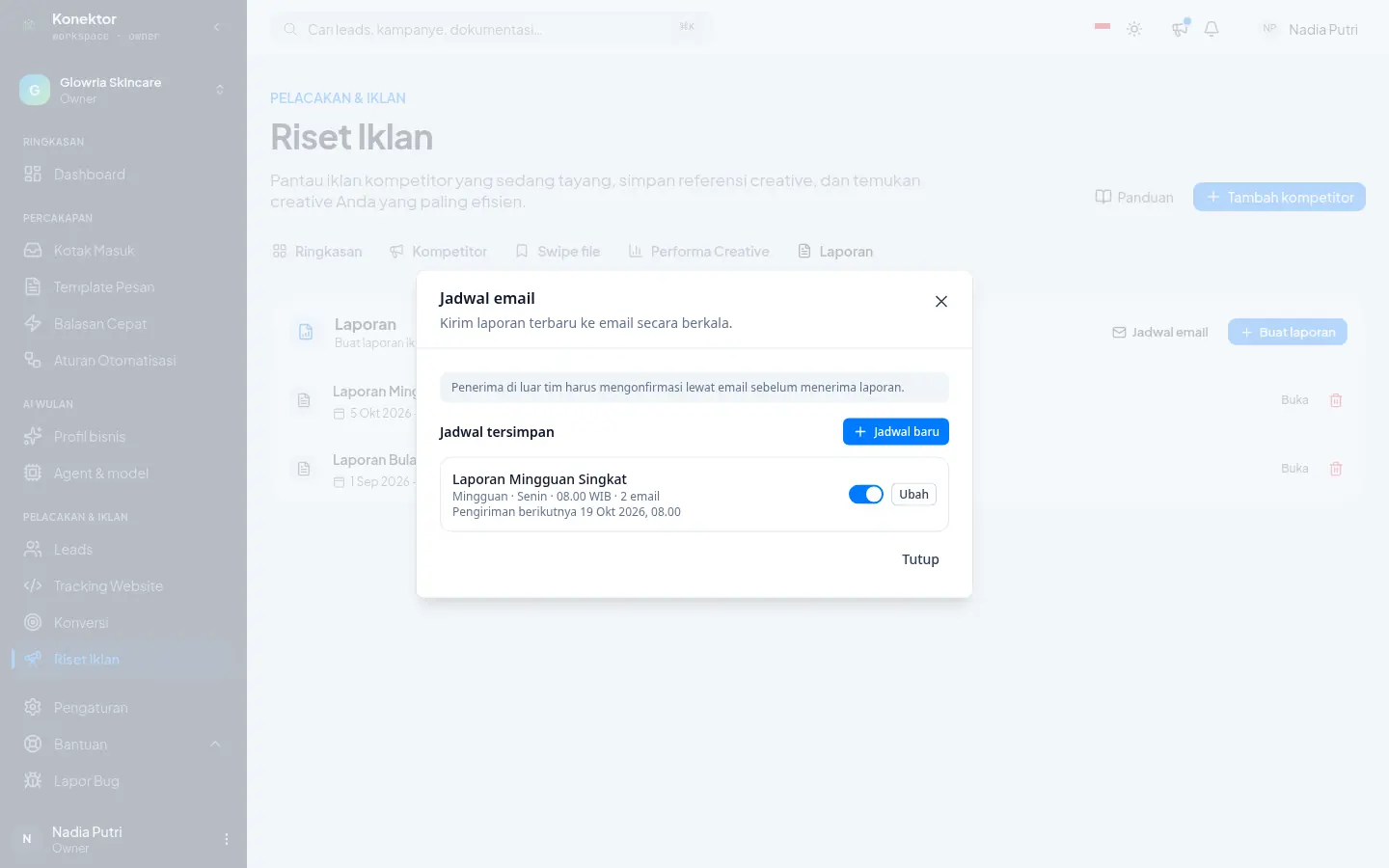
Workspace team members are confirmed at once. Recipients outside your team get a confirmation email and show Waiting for confirmation until they click Confirm. Every report email has a link to stop receiving reports.
What recipients see
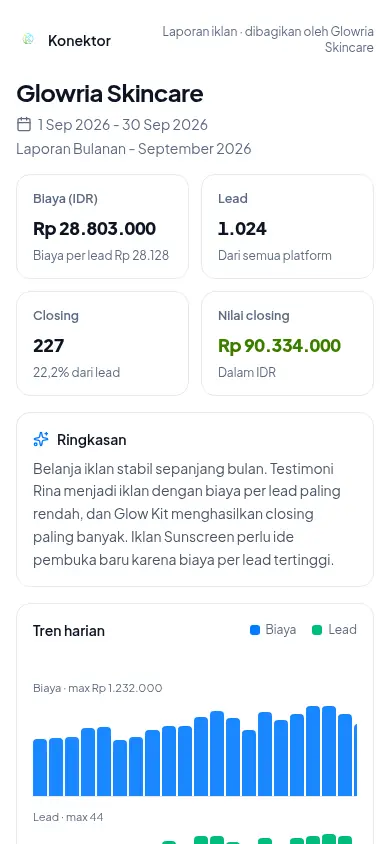
Recipients open the report in a browser, on a computer or a phone. The report carries the Konektor brand and your workspace name.
If something goes wrong
| Message | What to do |
|---|---|
| "Connect your Meta ad account to watch competitor ads every day." | Connect Meta in Ad Spend. Until then, use Open in the ad library. |
| "Reconnect your Meta ad account so competitor ads can be watched again." | Click Reconnect Meta and allow every permission. |
| "No ads are seen running for this competitor." | Check the competitor's Facebook Page. Select the Page again with Edit if it is wrong. |
| "This list was just updated. Try again in an hour." | Wait one hour, then click Refresh ads again. |
| "Your plan's competitor limit is reached." | Remove competitors that you do not use, or upgrade your plan. |
| A "Not sure" tag | Add the ad text, or correct the tag with the pencil icon. |
| "AI quota for this month is used up" | New tags and briefs start again next month, or upgrade your plan. |
| "Not enough data. At least 3 ads with running spend are needed." | Let your ads run longer, or select a longer date range. |
| A recipient gets no report email | Check the recipient status. A recipient that shows Waiting for confirmation must click the confirmation link in their email. |
| "This report is not available." | The link was revoked or has expired. Create a new link with Share link. |
Related links
Need More Help?
Our team is ready to help you maximize ad tracking and business attribution.
Wulan answers your questions and sends tutorial videos. Session scheduling is available through Wulan if you still need it.
© 2026 Konektor. All rights reserved.