
Hand over to team and Approvals
This page covers two subjects.
- Hand over to team: the rules for when the agent stops replying and your team takes over the chat.
- Approvals: the decision of your team in the Inbox on an agent action that changes data.
Both apply when Auto-reply is on. Read Agentic.
What you need
- The owner or admin role to set up Hand over to team.
- Auto-reply turned on.
- A team member with Inbox access to decide an approval.
Set up Hand over to team
Hand over to team is off until you turn it on.
- Open Wulan AI → Agent & model.
- Click the Hand over to team tab.
- Turn on Handover is on.
- Choose the Triggers. See the next section.
- Set the Actions: messages to the customer, a link, assignment, and notifications.
- Set the Business hours.
- Set If the team has not replied, if you want to.
- Check the Preview at the side of the page.
- Click Save.
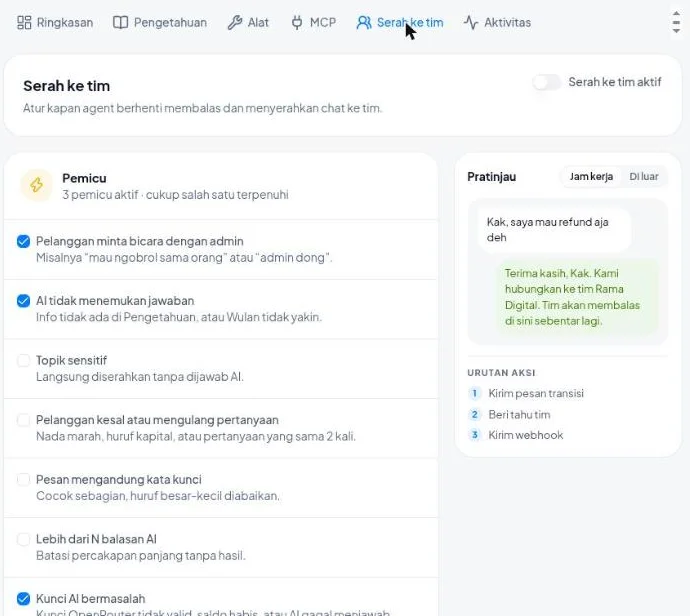
Triggers
One trigger is enough to hand over a chat.
| Trigger | When it happens | Default |
|---|---|---|
| The customer asks for an admin | The customer writes, for example, "I want to talk to a person" or "admin please" | On |
| The AI finds no answer | The info is not in Knowledge, or Wulan is not sure | On |
| Sensitive topics | The message is about Complaint, Refund, Payment, or Cancellation. You can add your own topics with + Your own topic | Off |
| The customer is upset or repeats the question | An angry tone, capital letters, or the same question twice | Off |
| The message has a keyword | The message has a keyword that you set. Upper and lower case do not matter | Off |
| More than N AI replies | The agent already sent more replies than the number you set in one chat | Off |
| The AI key has a problem | The OpenRouter key is not valid, the credit ran out, or the AI failed to answer | On |
For Sensitive topics, the agent hands the chat over without an answer.
Actions
When a chat is handed over, Konektor runs these actions in this order.
- The agent stops replying in that chat.
- Konektor sends a message to the customer.
- Konektor adds a link, if you filled one in.
- Konektor assigns the chat to a team member.
- Konektor notifies the team.
- Konektor sends a webhook.
- The agent writes an internal note with the reason and the main problem. The note does not have a phone number.
Send a transition message
Fill in two messages:
- During business hours
- Outside business hours
Use {nama_bisnis} for your business name and {jam_buka} for the next opening time. Click a chip in the Insert row to put it in the field that you typed in last. Konektor replaces both with the correct value.
Fill in Wait message for approval also. Konektor sends this message while the agent waits for your team to approve an action.
One message can have up to 500 characters.
Send a link
Turn on the Send a link switch, then fill in the Link text and the link address, or leave both empty. The address must start with https://. A WhatsApp link (wa.me) is fine. Konektor adds the link on a new line in the message.
Assign to
| Choice | Result |
|---|---|
| Not assigned | The chat has no owner |
| One agent | The chat goes to one member |
| Round robin | The chat goes to the members that you pick, in turn |
For One agent and Round robin, pick at least one member. You can pick up to 20 members.
Notify the team and webhook
- Notify the team sends a notification to the assigned member. If nobody is assigned, it goes to every Inbox member. It also sends the reminder again.
- Send a webhook sends an event to the webhooks that subscribe to "Conversation Handed To Team".
Call a tool or MCP
Turn on the Call a tool or MCP switch, then pick one tool from the Tools (API) or MCP tab. Wulan calls that tool before it hands the chat over, for example to open a ticket. A tool that changes data still waits for approval.
If the list is empty, first add a tool in the Tools (API) or MCP tab.
Business hours
Business hours decide which message is sent, and fill in {jam_buka}.
- Turn on the switch for each working day. A day that is off shows Closed.
- Fill in the opening time and the closing time for each day. The closing time must be after the opening time.
- Click Copy Monday to all days to copy the hours of Monday to all days. This button works when Monday is on.
Business hours use the time zone of the workspace. If no day is on, the team counts as always open.
If the team has not replied
Choose a wait time: None, or between 5 minutes and 12 hours. If the team has not replied after that time, Konektor sends the Reminder message to the customer one time and notifies the team again.
This rule applies only during business hours.
The Inbox after a handover
When the agent hands a chat over:
- The chat shows the Handled by the team banner with the reason.
- The agent stops replying in that chat.
- Your team members reply to the customer as usual.
The reasons that show in the banner:
| Reason | Meaning |
|---|---|
| The customer asked to talk to the team | The customer request trigger |
| Wulan could not find the answer | The info is not in Knowledge |
| Sensitive topic | The message has a sensitive topic |
| The customer seems upset | The upset customer trigger |
| The message has a keyword you chose | The keyword trigger |
| Wulan reached its reply limit | The reply count trigger |
| Wulan could not reply | The AI key has a problem |
| The action was not decided in time | The team did not decide an approval within 30 minutes |
| Wulan asked for help from the team | Any other reason |
Hand the chat back to Wulan
Wulan does not become active again by itself. Wulan replies again only after a team member presses the button.
- Open the chat that shows Handled by the team.
- Click Hand over to Wulan. The button is in the banner and in the Handling panel.
The button shows only when Auto-reply is on.
Take over a chat from Wulan
You can also take over a chat that Wulan still answers.
- Open that chat.
- In the Handling panel, click Take over.
Wulan stops replying in that chat until you press Hand over to Wulan.
Approval in the Inbox
When auto-reply is on, two kinds of tool wait for approval from your team:
- A tool (API) with the POST method.
- An MCP tool that you mark Needs approval.
A tool that only reads data runs without approval.
Decide an approval
- The agent stops in that chat and sends a wait message to the customer.
- The team receives a notification.
- Open the chat. The card Wulan wants to run {action name} shows under the messages.
- Read the details of the action on the card.
- Click Approve to run the action, or Reject to cancel it.
The card shows the time left, for example "24 minutes left". If the agent wants to run several actions together, the card shows "Wulan wants to run {number} actions" and all the details.
Owners, admins, and staff with Inbox access can decide. A team member can decide one action only one time.
After the decision
| Decision | Result |
|---|---|
| Approve | The action runs, then the agent replies to the customer |
| Reject | The action does not run, then the agent replies without it |
| Not decided within 30 minutes | The action expires and does not run |
If the action expires and the trigger The AI key has a problem is on, the agent hands the chat to your team with the reason "The action was not decided in time".
The Activity tab records each action with the status Waiting for approval, Passed, or Rejected.
Common problems
| Problem | Cause and fix |
|---|---|
| Check the fields in red before you save. | A field is not correct. Fix the fields in red. |
| Pick at least one member. | Pick a member for the assignment, or choose Not assigned. |
| The chosen member is no longer in the workspace. | Pick another member. |
| The chosen handover tool is no longer available. | Pick another tool, or turn off the Call a tool or MCP switch. |
| Fill in the link text and the address, or leave both empty. | Fill in both, or clear one of them. |
| The link address must start with https://. | Write the address with https://. |
| The closing time must be after the opening time. | Fix the hours on the marked day. |
| The Hand over to Wulan button does not show. | Turn on Auto-reply in the Overview tab. |
| The approval card does not show. | The action may be decided or expired. Reload the chat. |
Limits
| Limit | Value |
|---|---|
| Keywords | 20 |
| Characters in a keyword | 40 |
| Your own sensitive topics | 5 |
| Characters in your own topic | 60 |
| Characters in a message to the customer | 500 |
| AI replies before a handover (More than N AI replies) | 1 to 50 |
| Members for assignment | 20 |
| Wait time for a team reply | 5 minutes to 12 hours |
| Time to decide an approval | 30 minutes |
Full example
See the umrah travel scenario: from a Click-to-WhatsApp ad to a deposit sent to Meta, with templates and a video.
See also
Need More Help?
Our team is ready to help you maximize ad tracking and business attribution.
Try or continue
© 2026 Konektor. All rights reserved.