
Kommo WhatsApp Integration
Connect your Kommo account to Konektor. WhatsApp chats that reach Kommo also appear in the Konektor Kotak Masuk (Inbox). Chats that carry a visitor code become Leads.
What reaches Konektor
- Every WhatsApp conversation in Kommo appears in the Kotak Masuk, next to your other WhatsApp channels.
- You can reply to a Kommo conversation straight from the Konektor Kotak Masuk (see Reply from the Inbox).
- A chat that carries a visitor code
[K-...]becomes a lead in Konektor. The code is in the message that a Konektor WhatsApp Link prepares. - That lead links to the ad or page it came from, and Konektor sends its conversions to the ad platforms.
Requirements
Before you start, prepare:
- A Kommo account on the Advanced plan or higher. Lower plans have no webhooks.
- A Kommo account with the admin role.
- WhatsApp already connected in Kommo.
- Access to Konektor as the workspace Owner or Admin.
Step 1: Create a private integration in Kommo
- Sign in to your Kommo account as an admin.
- Open Settings > Integrations.
- Click Create integration.
- Choose Private.
- Leave the Redirect URL field empty.
- Keep all access options checked, including Sending to external chats. You need this option to reply from Konektor.
- Click Save.
Step 2: Generate a long-lived token
- Open the integration you just saved.
- Open the Keys and scopes tab.
- Click Generate long-lived token.
- Choose an expiry date, from 1 day to 5 years.
- Copy the token that appears. Kommo shows it only once.
Keep this token safe. Anyone who holds it can read your Kommo account.
Step 3: Add the Kommo integration in Konektor
- Sign in to Konektor as Owner or Admin.
- Open Pengaturan (Settings) > Lainnya (More) > Integrasi (Integrations), then click the Kommo card under Tersedia untuk dihubungkan (Available to connect).
- Fill in Integration Name, for example
Kommo WhatsApp. - Fill in Kommo account address with your account address, for example
yourbusiness.kommo.com. - Paste the token in the Long-lived token field.
- Click Connect. The new integration card shows Connected.
You can also add Kommo from Koneksi (Connection) > Hubungkan WhatsApp (Connect WhatsApp) > Lewat penyedia (Through a provider). Pick the Kommo card under Penyedia (Provider), fill in Alamat akun Kommo (Kommo account address) and Token jangka panjang (Long-lived token), then click Lanjut (Continue).
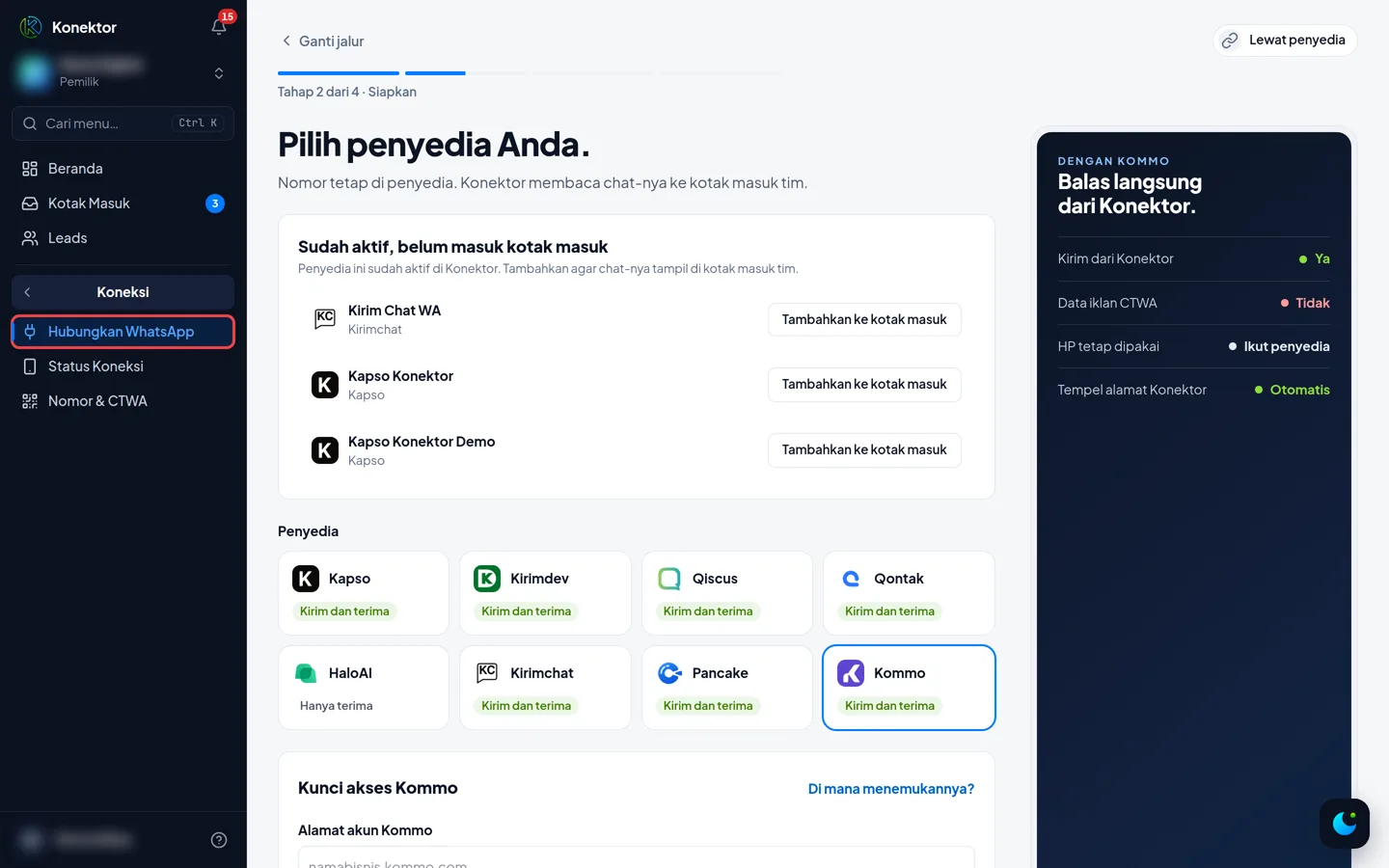
You do not need to create a webhook in Kommo. Konektor sets it up for you.
Step 4: Add it to the Inbox
Once the integration is active, WhatsApp chats from Kommo appear automatically in your Inbox. No extra step is needed.
Test with one WhatsApp message
- Create or open a WhatsApp Link that points to your business number in Kommo.
- Open that link on your personal phone, then send the message it prepares. The message carries a visitor code
[K-...]. - Open Kotak Masuk in Konektor. Confirm the conversation appears.
- Open Leads. Confirm the contact from the test message appears as a lead.
A plain message without a visitor code still appears in the Inbox, but it does not become a lead.
Reply from the Inbox
Open a Kommo conversation in Kotak Masuk, write a message, and send it. The message goes through Kommo to the customer's WhatsApp and shows as a reply from your team.
For a reply to send, make sure that:
- Your Kommo account is on the Trial, Pro, or Enterprise plan with the Chats API add-on.
- The private integration has the Sending to external chats access option. If you kept all access options checked, it has it.
- The customer's conversation is still open in Kommo.
Kommo limits replies each month by plan: 100 for Trial, and 500 for Pro and Enterprise. When the limit is used up, Kommo refuses replies until you buy more quota in Kommo. Konektor sends text messages only.
Limits
- Only WhatsApp chats come in. Instagram, Telegram, Facebook, and site chats do not.
- The contact in Kommo must have a phone number. A contact without a phone number does not come in to Konektor.
- Replies from Konektor are text only, and only into a conversation that is still open in Kommo. For images, files, or a closed conversation, reply from Kommo.
- Kommo does not send the ad click ID. Ad data comes from Konektor tracking links (visitor code).
Common problems
- A reply does not send — check three things: your Kommo plan has the Chats API add-on, the private integration has the Sending to external chats access option, and the monthly quota is not used up. Make sure the conversation is still open in Kommo.
- No messages arrive — check that your Kommo plan is Advanced or higher and that an admin made the integration. Check that the chat is WhatsApp and the contact has a phone number. Send a new message; old messages do not come in.
- Token expired — make a new token in the Keys and scopes tab. Then click Edit on the Kommo card in Konektor and paste the new token.
- Plan without webhooks — upgrade your Kommo plan to Advanced or higher, then add the Kommo integration in Konektor again.
- Account address rejected — write the full address, for example
yourbusiness.kommo.com.
Remove the integration
- In Konektor, open Pengaturan > Lainnya > Integrasi and delete the Kommo integration.
- In Kommo, open Settings > Integrations > Web hooks. Delete the Konektor web hook.
Next Steps
Need More Help?
Our team is ready to help you maximize ad tracking and business attribution.
Wulan answers your questions and sends tutorial videos. Session scheduling is available through Wulan if you still need it.
© 2026 Konektor. All rights reserved.