
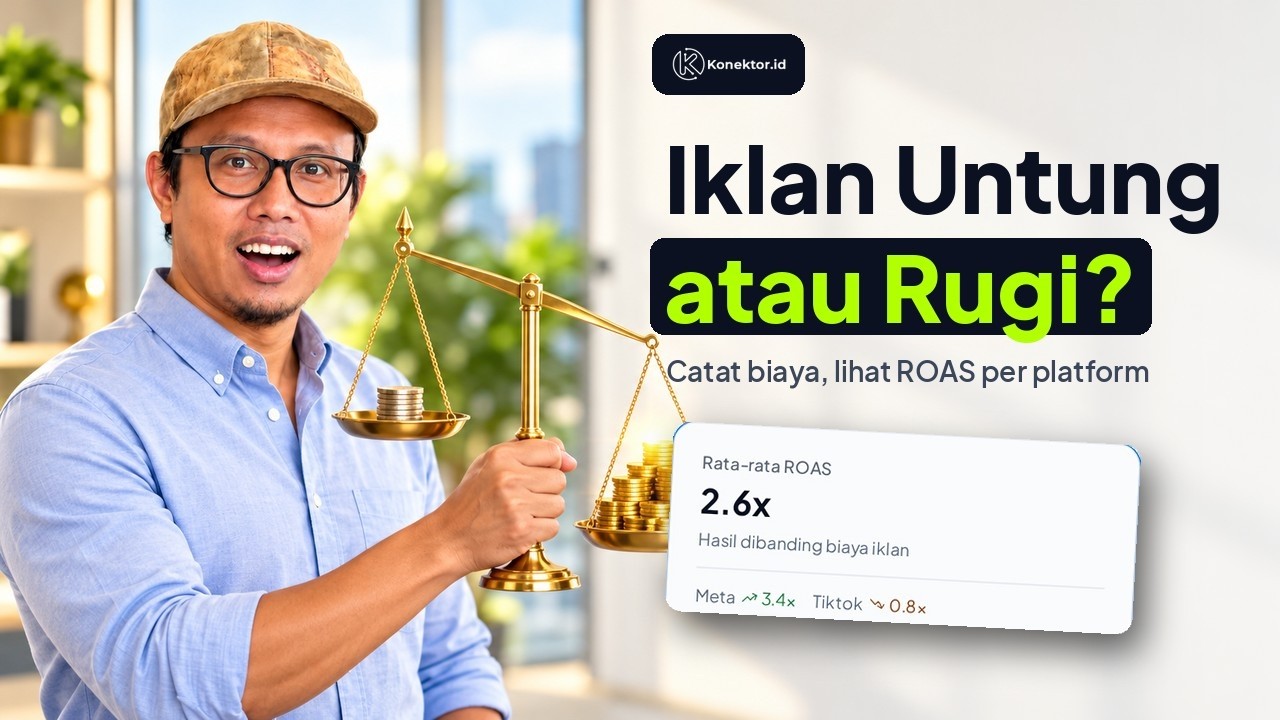
Record ad spend and see ROAS per platform, in 1 minute (Indonesian narration)
Record ad spend and see ROAS per platform, in 1 minute (Indonesian narration) • 1:04
Tonton di YouTubeAds Spend
The Ads Spend feature allows you to record daily advertising expenses from various platforms such as Meta (Facebook/Instagram), Google, TikTok, ChatGPT Ads, and others. This data is crucial for calculating an accurate ROAS (Return on Ad Spend) in the Konektor Analytics Dashboard.
Key Features
Konektor supports two methods for inputting ad spend data:
- Manual Input: Enter daily spend data manually for any platform.
- Automatic Sync: Connect ad accounts (like Meta Ads) to pull spend data automatically every day.
How to Use
1. Adding Spend Manually
This method is suitable for platforms that do not yet support automatic synchronization or for inputting historical data.
- Go to Tracking & Ads > Ad Analytics > Ad Spend.
- Click the Record New Spend button.
- Select the Platform (e.g., Google Ads, TikTok Ads, ChatGPT Ads).
- Enter the Amount spent.
- Select the Date Range (usually per day or per campaign).
- Click Record New Spend, then click Confirm.
2. Automatic Sync (Meta Ads)
For Meta Ads (Facebook & Instagram) users, you can connect your ad account so that spend data flows in automatically without manual input.
- Click the Manage Connections button.
- Select the Meta Ads tab.
- Click Add New Account.
- Follow the Facebook login process and select the ad account you want to connect. The Next button turns on after you select an ad account. Click Next, then click Connect & Sync.
- Once connected, click the Sync Now button to pull data for the last 7 days.
- The system will automatically sync daily thereafter.
How Meta Ads Sync Works
Here is a simple explanation of how the data is pulled and updated:
- Daily automatic sync pulls daily spend from Meta for past dates (typically yesterday).
- Manual Sync pulls the last 7 days to capture attribution changes.
- If the system finds the same date again, it updates the record with the latest value from Meta.
- If Meta revises past spend, Konektor will reflect it on the next sync.
Why Numbers Can Differ from Meta
This is normal and usually caused by:
- Attribution delay: Meta can adjust spend for past days.
- Time zone: Differences between Meta account timezone and Workspace timezone can shift daily totals.
- Rounding: Spend is stored as rounded numbers for consistent reporting.
If you notice a mismatch, run Manual Sync and verify your Workspace timezone settings.
3. Disconnecting
If you wish to stop synchronization or switch ad accounts:
- Open the Manage Connections menu on the Ads Spend page.
- Select the Meta Ads tab.
- Click the Menu button (three dots) on the account you want to disconnect, then select Disconnect.
- In the Disconnect? dialog, click Disconnect.
Warning
Disconnecting will stop the synchronization of new data. Existing ad spend data (historical data) will not be deleted and remains safe in the Konektor system.
Currency
Ensure the currency in your ad account matches the Workspace currency in Konektor for accurate calculations.
Distinguishing Manual & Sync Data
In the Spend History table, you can easily distinguish the data source via the icon in the Platform column:
- Cloud Icon (Blue)
- Pencil Icon (Gray)
Managing Data
You can view, filter, and delete ad spend data.
- Filter: Use the filters above the table to view costs by specific Platform or Date Range.
- Delete: Click the menu button (three dots) on the right of the row, then select Delete.
Warning
Deleting ad spend data will affect total spend and ROAS calculations in your Analytics Dashboard. Ensure the deleted data is indeed incorrect or duplicate.
Troubleshooting
The Connect & Sync button is missing or disabled
Select one ad account first. Next turns on after you select an account. Connect & Sync shows in the next step, after you click Next.
The message "Invalid credentials structure" appears
This message means the access token or the ad account ID is not saved on the Meta connection. Reconnect Meta: open Manage Connections, select the Meta Ads tab, then repeat the Facebook login and select the ad account.
Next Steps
- Analytics Dashboard to see your ROAS performance.
- Cumulative Funnel Analytics to see cost trends per stage.
- Report Page for per-platform analysis.
Need More Help?
Our team is ready to help you maximize ad tracking and business attribution.
Wulan answers your questions and sends tutorial videos. Session scheduling is available through Wulan if you still need it.
© 2026 Konektor. All rights reserved.