
Workspace Settings
The Settings page keeps all workspace settings in one place. Open Settings at the bottom of the sidebar, or from the account menu at the bottom left.
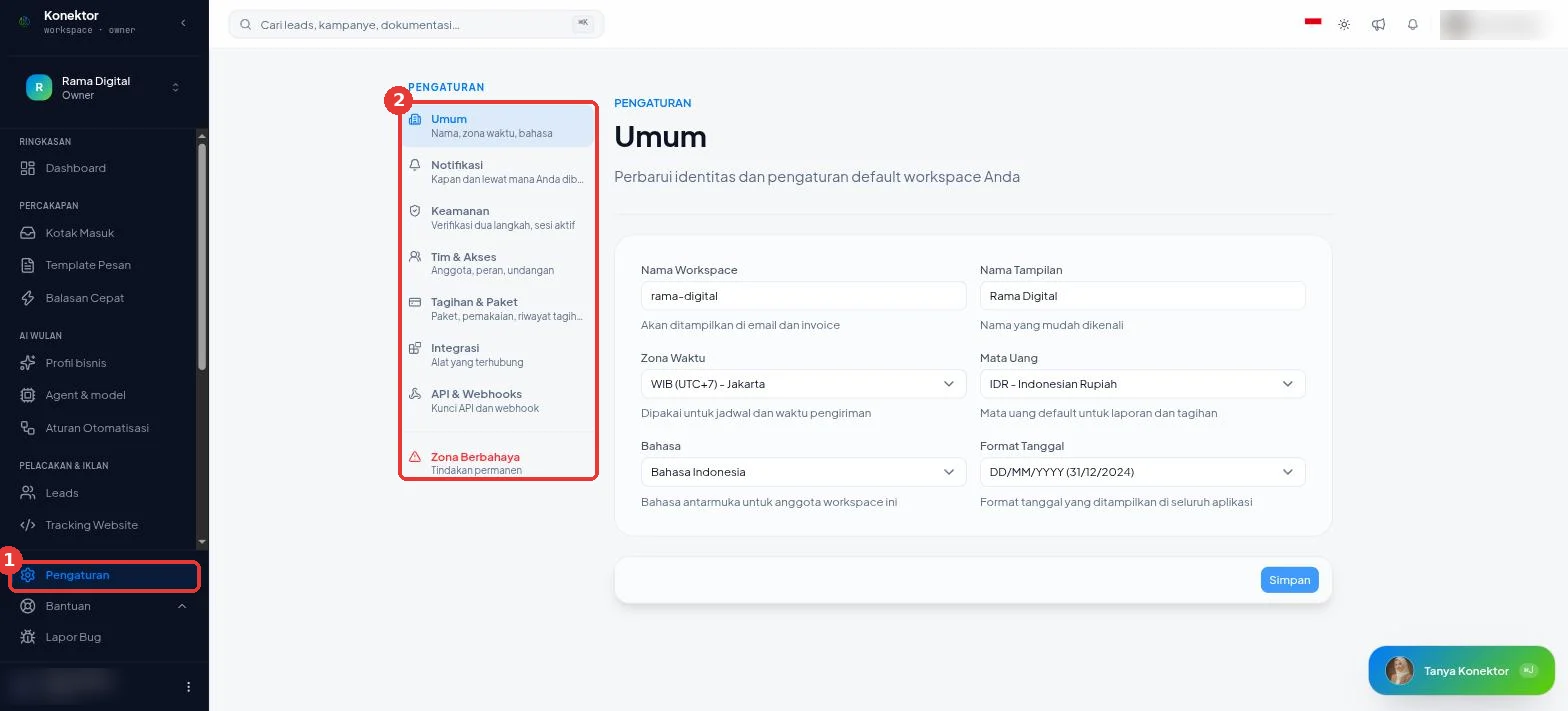
Settings menu
| Menu | What it holds | Who sees it |
|---|---|---|
| General | Name, time zone, language | All roles |
| Notifications | Emails from Konektor | All roles |
| Security | Two-step verification, active sessions | All roles |
| Team & access | Members, roles, invitations. Read Team Management. | All roles |
| Billing & plan | Plan, usage, billing history. Read Billing. | Owner |
| Integrations | Partner gallery. Read Partner Integrations. | All roles |
| API & Webhooks | API keys, webhooks, and Claude connections. Read API Reference. | Owner |
| Danger zone | Permanent actions | Owner |
General
- Open Settings > General.
- Change the fields that you need.
- Click Save.
| Field | What it does |
|---|---|
| Workspace Name | Shows on emails and invoices. |
| Display Name | A name your team recognizes easily. |
| Timezone | Used for schedules and delivery times. |
| Currency | The default currency for reports and invoices. |
| Language | The interface language for this workspace's members. |
| Date Format | The date format throughout the app. |
When there are unsaved changes, the page shows "You have unsaved changes". After a save, the page shows "All changes saved" with the time.
Notifications
Settings > Notifications controls optional emails from Konektor:
| Switch | The email goes out when |
|---|---|
| Usage limit alerts | The workspace approaches or reaches its daily lead limit. |
| Subscription renewal reminders | The subscription renewal date is near. |
Click Save after you change a switch.
In-dashboard notifications and Wulan notifications are set from the account menu > Notifications. Read Wulan Privacy, Data Permissions, and Notifications.
Security
Settings > Security holds:
- Account security: two-factor authentication, password, and session length. The steps are in Team Management.
- Data permissions for Wulan. Read Wulan Privacy, Data Permissions, and Notifications.
- Recent sign-ins: the devices and times your account last signed in. The session that you use now has the label This session.
If Recent sign-ins shows a device that you do not know, change your password from the Profile page.
Danger zone
Only the Owner sees this menu.
Transfer Ownership
Click Transfer. A workspace ownership transfer currently goes through the support team. Click Contact Support to start.
Delete Workspace
Permanent action
Once deleted, all workspace data is lost permanently. You cannot undo this action.
- Open Settings > Danger zone.
- Type the workspace name in the Confirm with Workspace Name field.
- Click Delete This Workspace.
- Confirm again in the dialog.
Troubleshooting
| Text on screen | What to do |
|---|---|
| "Could not save your changes. Try again shortly." | Wait a moment, then click Save again. |
| The sign-in history does not load | Click the retry button. |
| Billing & plan, API & Webhooks, or Danger zone does not show | These menus are for the Owner only. Ask the workspace owner to open them. |
Related links
Need More Help?
Our team is ready to help you maximize ad tracking and business attribution.
Try or continue
© 2026 Konektor. All rights reserved.