
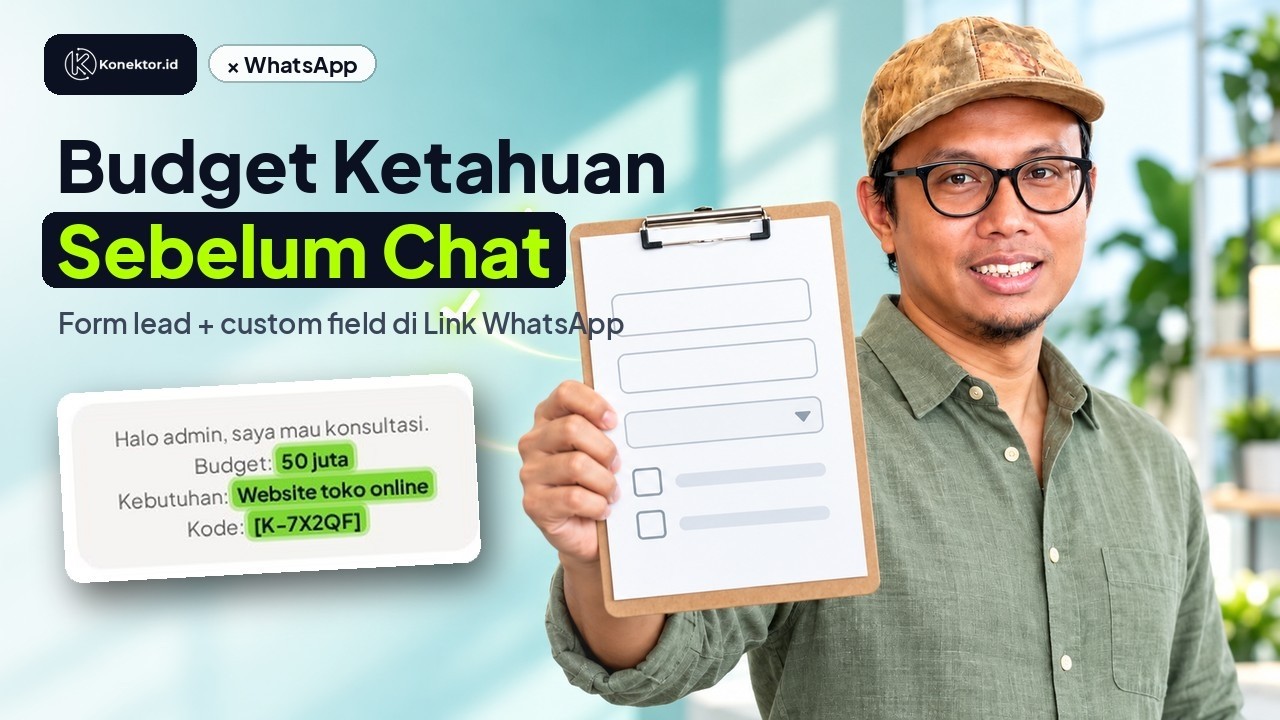
Lead form with custom fields: the customer budget arrives in the WhatsApp chat, in 1 minute (Indonesian narration)
Lead form with custom fields: the customer budget arrives in the WhatsApp chat, in 1 minute (Indonesian narration) • 1:08
Tonton di YouTubeLead Capture Form
Overview
By default, a rotator link opens WhatsApp immediately.
When Lead Capture Form is enabled, visitors see a form first, then get redirected to WhatsApp after submit.
Latest version includes:
- Core fields:
name,phone,email - Dynamic custom fields (up to 10)
- Custom field types:
text,textarea,select,checkbox - WhatsApp message token support:
[k:key]
When Should You Use It?
Use Lead Form when you want to:
- Capture richer lead data before chat starts
- Measure ad traffic quality beyond WhatsApp clicks
- Inject visitor context into the first WhatsApp message
Quick Enable Steps
- Go to Links & Domains > WhatsApp Links.
- Click the three-dot button next to Create Link, then select Create Form.
- In the Create Lead Form window, enter the rotator name, link slug, and destination WhatsApp numbers.
- Write the message in Default Message Template. Click a tag in Quick Tags to copy
[uniquecode]or[k:key]. - Make sure the Lead Capture Form toggle is on. This toggle is on automatically.
- Fill in the form settings:
- Form Title
- Submit Button Text
- Description
- Logo URL (optional)
- Click Add Field in the Custom Fields section to add your own fields.
- Click Create Link to save.
To change a form, click Edit Rotator on that form's row. The Lead Capture Form section shows while the form is on.
Plain link and form
A plain link made with Create Link has no form section. To use a form, create a new link with Create Form.
Configure Form Fields
Core fields
nameandphoneare always enabled and required.emailcan be enabled/disabled, and optionally required.
Custom fields
- Maximum 10 fields per rotator.
- Each field has a Key (field ID) that must be:
- unique
snake_case- not a system key
| Type | User Input | Validation |
|---|---|---|
text | Single line text | Trim + max length |
textarea | Multi-line text | Trim + max length |
select | Option picker | Value must match one of the listed options |
checkbox | Check toggle | Yes/No only |
Good Key Naming
Recommended keys: budget, service_need, plan_type, has_team.
Use Tokens in WhatsApp Message
In your rotator message template, you can use:
[uniquecode]for the visitor unique code[k:key]for custom field values
Example:
Hi team, I want to discuss.
Budget: [k:budget]
Need: [k:service_need]
Code: [uniquecode]
If a custom field value is missing/empty, token output becomes an empty string.
WhatsApp Link Custom URL Params with k_*
Besides form.custom_fields, you can also pass context from URL query params using the k_ prefix, for example:
?k_budget=50jt?k_channel=meta?k_product=premium_plan
k_* values will:
- Be stored in lead custom fields with stable keys (for example
k_budget) - Appear in CSV export as
cf_k_budget - Be usable in WhatsApp message templates in two token styles:
[k:k_budget](full key)[k:budget](automatic alias fromk_budget)
If a token has no value, output stays an empty string.
If you want k_* to be auto-forwarded when users click rotator/form links from pages that already contain query params (without manually appending query on every link), enable this tracker option:
konektor('init', 'WS-XXXX', {
  crossDomain: {
    autoLink: true,
    forwardKParams: true
  }
})
Link Format
- Direct WhatsApp link (no form):
domain.com/wa/[slug]ordomain.com/[slug](depends on domain setup) - Form link:
domain.com/form/[slug]
Important
Use /form/ URLs in ads or landing pages when you want visitors to fill the form first.
Where Is Data Stored?
- Lead data is saved to Leads as usual.
- Custom fields are stored securely.
- Custom fields appear in Lead Detail.
- When exporting leads to CSV, custom fields are included as
cf_<key>columns. - In the lead list page, only core data is shown. Open Lead Detail or the export file to view custom fields.
Permission & Access
- Only workspace owners (
owner) and admins can create, update, or delete rotators. - Team members (
staff) can only view lead details assigned to them.
Recommended Implementation Checklist
- Enable Lead Form on one rotator first (pilot).
- Add 2-3 high-value custom fields.
- Add
[k:key]tokens to message template. - Submit test from
/form/[slug]. - Verify:
- WhatsApp redirect works
- Custom fields appear in lead detail
- Message tokens are replaced correctly
Troubleshooting
Do I need to update the tracking script?
- No, not required for Lead Capture Form + rotator custom fields.
- As long as your traffic uses
/form/[slug], custom fields will work without tracking script changes. - Tracker updates are still recommended for broader website tracking improvements (e.g., UTM/cross-domain), but they are not a strict requirement for this feature.
Form cannot be submitted
Common causes:
- Required field is empty
- Duplicate custom field key
selectvalue is not in the available optionscheckboxvalue is not Yes/No
[k:key] token not filled
Check:
- Token key exactly matches field key
- Field is active
- User actually submitted a value (empty maps to
-)
Current Limits
- Custom fields are shown in Lead Detail and included in CSV export (
cf_<key>) - Max 10 custom fields
- Supported types only: text, textarea, select, checkbox
Next steps
- Create and Test a WhatsApp Link
- Automation Rules - Automatic Actions Without Coding
- WhatsApp Fallback Messaging
- Ad tracking software for Umrah and Hajj travel: an example that uses the form for prospect data
Create or edit through MCP
Connect the Konektor connector to the workspace that you want to manage. Grant rotator read access to inspect settings. Grant rotator write access to create or edit a form. Existing connections need new consent for rotator write permission.
Ask the agent to check rotators_list and rotator_options, then use rotator_create or rotator_update.
Specify the workspace, name, slug, destination number, and form settings.
Partial updates preserve settings that you omit. A slug already used on the same domain is rejected.
Creating or editing a form does not send a WhatsApp message. Check the form link after saving.
Need More Help?
Our team is ready to help you maximize ad tracking and business attribution.
Wulan answers your questions and sends tutorial videos. Session scheduling is available through Wulan if you still need it.
© 2026 Konektor. All rights reserved.