
Tools (API)
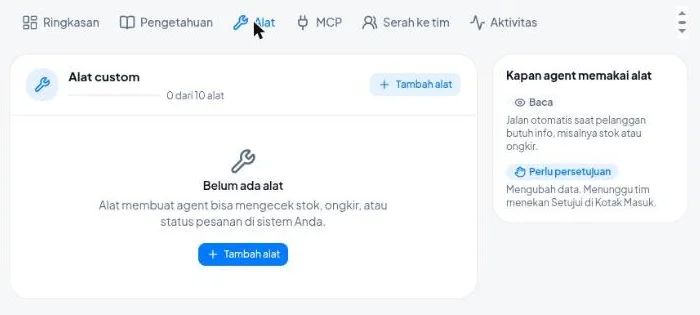
A tool lets the agent check data in your own business system. Examples are stock, shipping cost, or order status. The agent calls a tool when a customer needs that information.
A tool calls one API address in your system. Your system must have an API that opens through HTTPS.
What you need
- The owner or admin role in the workspace.
- A saved OpenRouter key. Read Agentic.
- A Replies model with the Supports tools label.
- A public HTTPS API address from your system.
- If your API asks for a sign-in: a token, a password, or a key from your system.
Ask your developer if you do not have an API yet. Ask for the address, the way to authenticate, and an example answer.
Two kinds of tool
| Method | What it does | How it runs |
|---|---|---|
| GET | Reads data, for example stock | Runs on its own when a customer needs information |
| POST | Changes data, for example creates an order | Waits for the team to press Approve in the Inbox |
A reply suggestion that your team asks for by hand uses only the tools that read data.
Example: a "Check stock" tool
This example makes a tool that checks the stock of one product. Replace the address with the address of your API.
- Open Wulan AI → Agent & model.
- Click the Tools (API) tab.
- Click Add tool.
- Fill in these fields.
| Field | Value |
|---|---|
| Tool name | Check stock |
| Description for the AI | Check the stock of one product. Use it when a customer asks if a product is still available. |
| Method | GET |
| URL | https://api.yourshop.com/stock/{product_code} |
- Under Parameters, click Add parameter, then fill in:
| Field | Value |
|---|---|
| Name | product_code |
| Type | Text |
| Required | Selected |
| Explanation for the AI | Product code, for example KS-BLK-M |
- Under Authentication, choose the kind that your API asks for. See the "Authentication" section below.
- Under Parts of the answer for the AI, write
data.name, data.stock. The agent receives only those two parts. - Test the tool. See the next section.
- Click Save.
- Turn on the switch of the tool in the list.
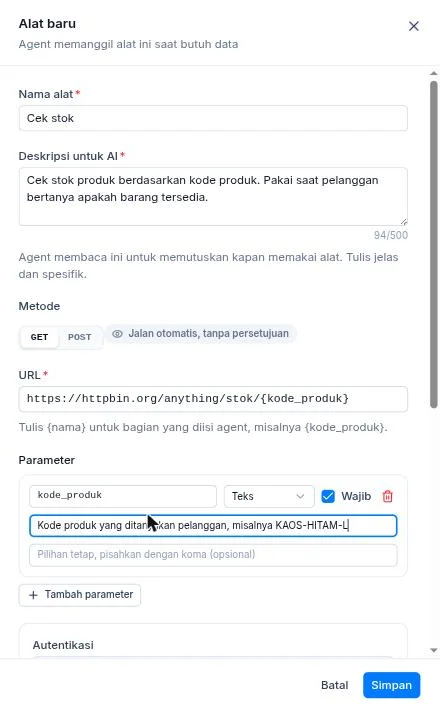
Write {product_code} in the URL for the part that the agent fills in. Each {name} in the URL must have a parameter with the same name. A {name} part can be in the path or in the query. The domain name is fixed and cannot contain a {name} part.
For example, a customer asks "Is the black shirt in M still available?". The agent fills in product_code, calls the address, and answers from the result.
Write a clear description
The agent reads the Description for the AI to decide when to use the tool. Write when to use the tool and what data it returns. In each parameter, fill in the Explanation for the AI with an example value.
A parameter can be Text, Number, or Yes/No. Fill in Fixed choices when the value must come from a list, for example regular, express.
Authentication
Authentication is the way your system checks that Konektor is the caller.
| Choice | Meaning | Use it when |
|---|---|---|
| None | No sign-in | Your API is open to the public |
| Bearer token | One long secret code from your system | Your API gives a "token" or an "API key" |
| Header | A secret code sent under a given name, for example X-API-Key | The API documentation names a header |
| Basic | A username and a password | Your API asks for a username and a password |
Fill in Token, Header value, or Username and Password for your choice. Konektor stores the value encrypted and does not show it again. The page shows only the last 4 characters. To change the value, enter the new value in the field.
If your API needs other headers, open Extra headers and click Add header. Konektor sends these headers with every request.
Test the tool
Test the tool before you save it.
- In Test the tool, fill in the Sample value for each parameter, for example
KS-BLK-M. - Click Run test.
- Read the result.
The test sends one real request to your system. It does not count as agent use.
A correct result shows Passed, Status 200, the duration, and Start of the answer. Check that the start of the answer has the data that you need.
POST tools and approval
A tool with the POST method changes data in your system. For this reason a POST tool has the Needs approval mark.
When auto-reply is on and the agent wants to use a POST tool:
- The agent stops and sends a wait message to the customer.
- The Inbox shows the card "Wulan wants to run {tool name}".
- A team member reads the details, then presses Approve or Reject.
- The agent continues and replies to the customer.
An action that nobody decides within 30 minutes expires. Read Hand over to team and Approvals.
Result
- The tool shows in the list with the Read mark (GET) or the Needs approval mark (POST).
- The count "{number} of 10 tools" shows above the list.
- Each use of a tool is recorded in the Activity tab.
Common problems
| Message | Cause and fix |
|---|---|
| Fill in every required parameter. | Fill in the Sample value for all parameters. |
| A value does not match its type. | A value for a Number parameter must be a number. |
| This address cannot be used. Use a public HTTPS address of your own system. | Use a public https:// address with a domain name of your own system. |
| No answer within 10 seconds. | Your system is too slow. Ask your developer to make the API faster. |
| Could not connect to this address. | Check the address and make sure your system is running. |
| The answer is too large. | Fill in Parts of the answer for the AI so the agent receives only the parts it needs. |
| This address redirects too many times. | Use the final address of the API, not an address that moves. |
| Your system answered with status {status}. | Your system refused the request. Status 401 or 403 usually means a wrong token. Status 404 means a wrong address. |
| The domain name cannot contain a part the agent fills in. | Move {name} to the path or the query of the URL. |
| A part of the URL is not a parameter yet. | Add a parameter with the same name as the {name} in the URL. |
| This header name cannot be used. | Choose another header name. |
| Enter the token or password for this kind of authentication. | Fill in the authentication value. |
| The limit of 10 tools is reached. | Delete a tool that you do not use. |
The agent does not use your tool? Check these three items:
- The switch of the tool is on.
- The Replies model has the Supports tools label.
- The Description for the AI says when to use the tool.
Limits
| Limit | Value |
|---|---|
| Tools in a workspace | 10 |
| Parameters in a tool | 8 |
| Extra headers in a tool | 5 |
| Parts of the answer for the AI | 20 |
| Characters in the description for the AI | 500 |
| Wait time for the answer of your system | 10 seconds |
| Size of the answer of your system | 64 KB |
| Content of the answer that the agent receives | 4,000 characters |
| Tool calls each hour for the whole workspace | 300 |
| Agent steps for each reply | 4 |
See also
Need More Help?
Our team is ready to help you maximize ad tracking and business attribution.
Try or continue
© 2026 Konektor. All rights reserved.